
You shouldn’t have to memorize formulas or deal with pivot tables when you need to create graphs from data in Google Sheets. Depending on the complexity of the data, the process can be cumbersome and prone to errors.
If you’ve ever stared at a long spreadsheet and wished it could magically turn into an actionable graph, well, that’s possible now thanks to AI. In this post, we’ll show you how you can use AI to automatically make graphs from Google spreadsheets in seconds.
Introducing EasyAIBridge
EasyAIBridge is an AI data analysis tool that can extract data from Google Sheets and create an AI analysis report with graphs, tables, and insights. You just need to tell it in plain English how you want to view the data, and it will generate a report ready for export within seconds. There is no need for any formulas or functions.
How to Use EasyAIBridge to Create Graphs from Google Sheets
EasyAIBridge connects to Google Sheets directly and also accepts uploads of Excel (.xlsx, .xls) and CSV files for data retrieval. You can generate 5 reports for free per month, and more reports and additional functions can be unlocked with premium plans. Let’s create a graph using EasyAIBridge:
Create an account on EasyAIBridge and access the main dashboard. First, you need to connect your Google Sheets account with EasyAIBridge. Click the Connect Now button in the Connect Google Sheets section. Select the Google Sheets option in the next step and then click the Connect App button. You’ll have to provide the required permissions to manage the files inside Google Sheets.
Once your account is connected, you’ll see an option to browse your files in Google Sheets or upload a new Excel/CSV file.
Now, choose your data file from the list of files. You can choose more than one file as well. Afterward, click on the blue Smart Ask button.
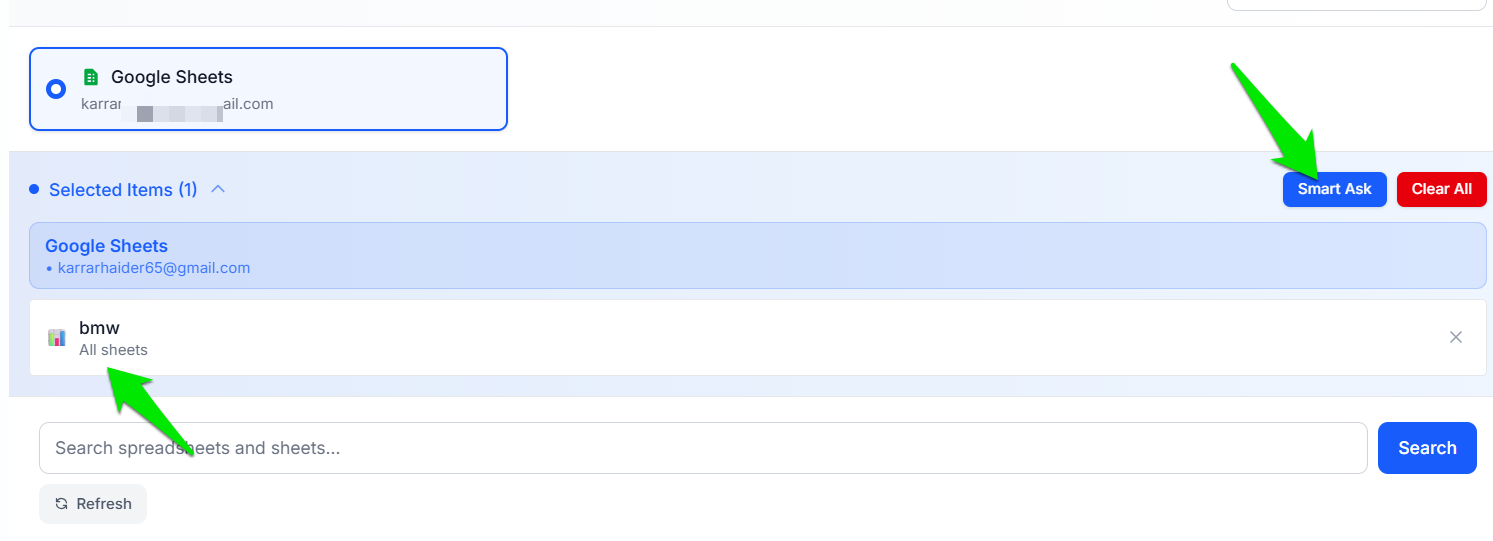
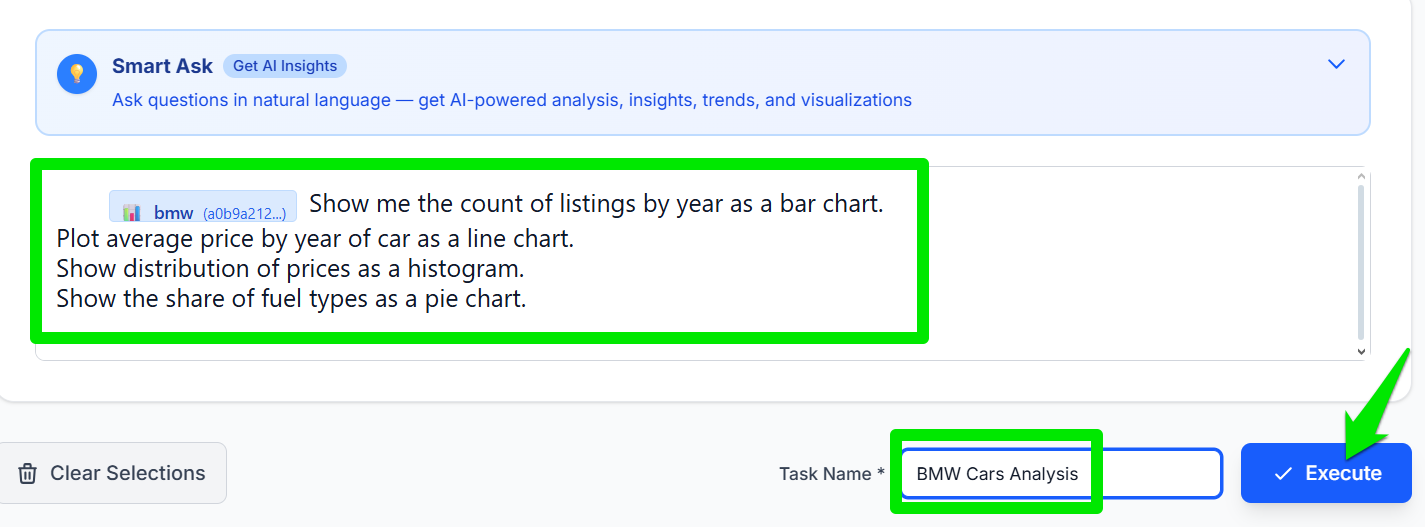
A text field will appear where you can enter your prompt in plain English. Since you want to view data as graphs, you should specifically mention which data you want to see and what type of graph it should use, like “Show average price by model as a bar chart”. You can ask it to create multiple graphs of different data in the same prompt (as shown in the picture). Once a prompt is created, provide a Task name and click on Execute.
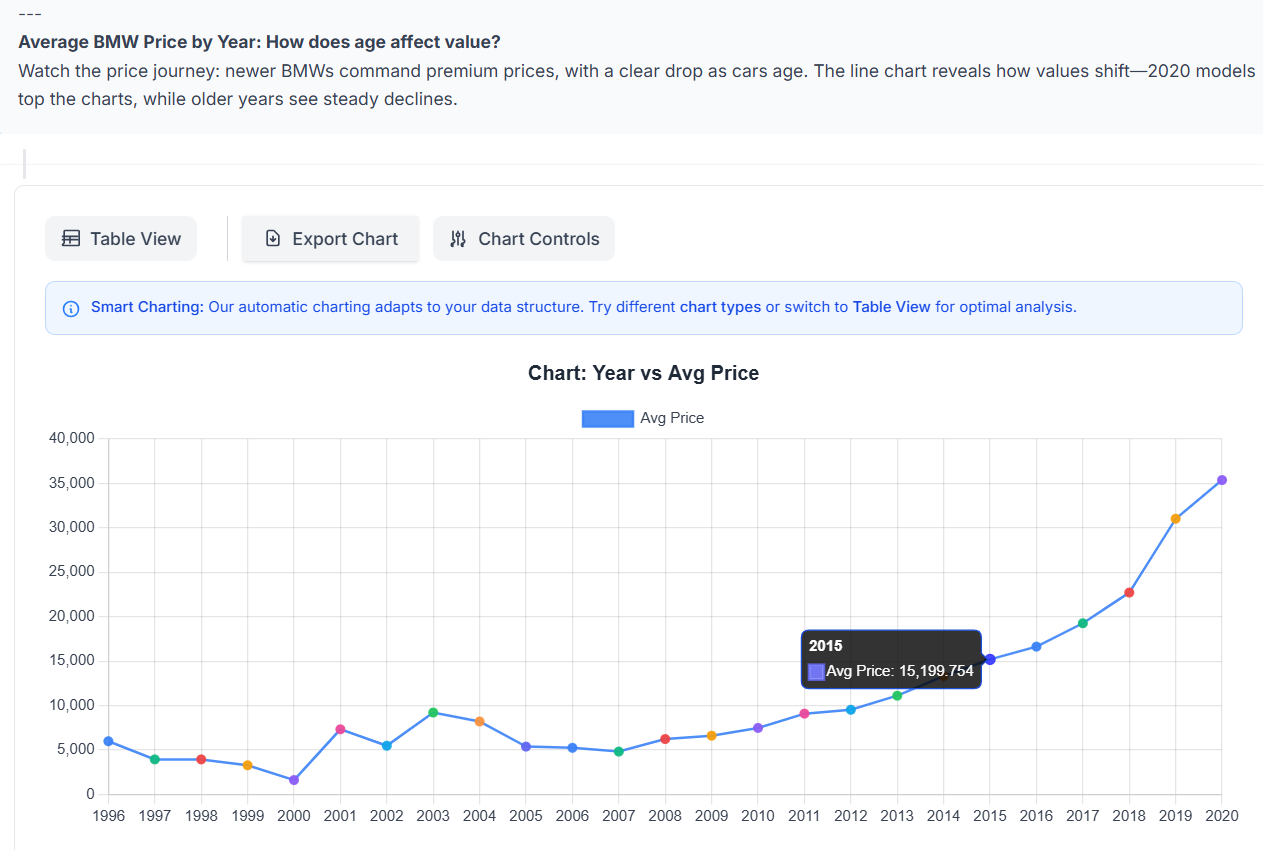
EasyAIBridge will take a short while (took only about 15 seconds for our 10000 rows of data) to generate a report. The report will show your graphs and an AI summary of the findings on top of each graph.
Managing EasyAIBridge Report
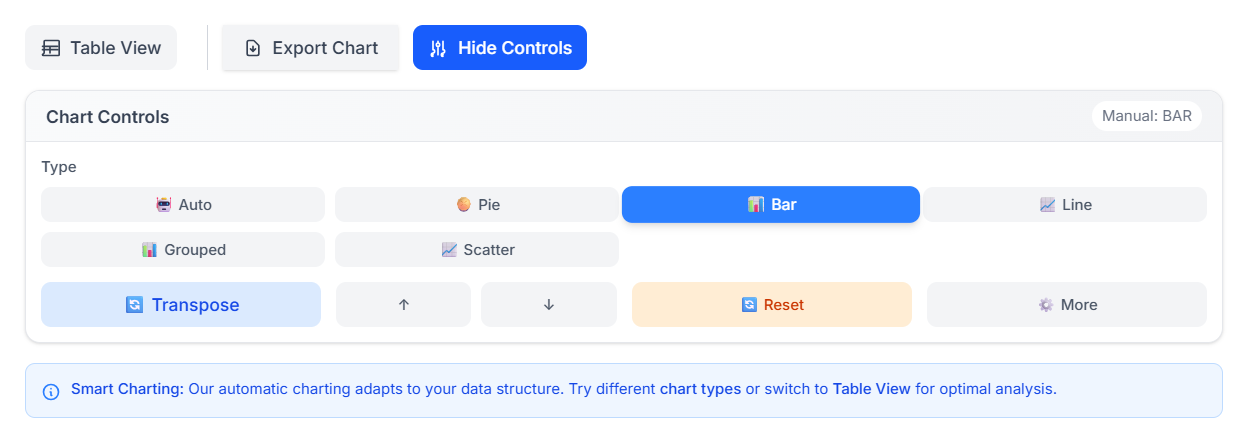
The report EasyAIBridge generates is fully interactive; you can change graph types and find the best ones for each data set. Click on the Chart Controls button to reveal options to customize. Here, you can apply different types of charts, switch data columns and rows, and change the order by ascending/descending. More importantly, there is an Auto button that uses AI to automatically apply the best configuration based on data type. There is also a Table View that shows selected data in a table.
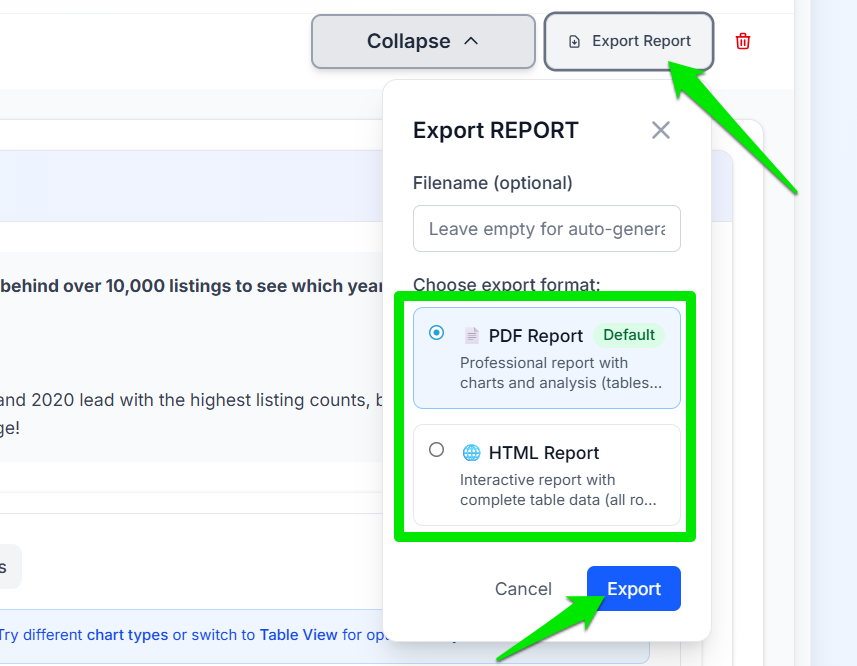
When you are satisfied with the graphs, you can either click on the Export Chart button on each graph to download it individually or download the full report by clicking on Export Report at the very top of the report. You can choose to download the report in both PDF and HTML formats. If you want to download the interactive report, select the Dashboard option at the top and then click the Export button instead.
For best results, make sure your data is neatly organized in rows and columns with clear field names. While EasyAIBridge can make sense of messy data, it may impact overall accuracy. You can check the Data Processing metrics at the end of the report to confirm if any data was left out.