
Knowledge · PictureEcho
How to Find and Delete Duplicate Photos on Windows (Safely)
Windows Pictures folders fill the same way phone galleries do. Camera imports land twice. OneDrive keeps a copy next to a “Download” copy. A burst of eight near-identical shots sits next to a resized email export of the same sunset.
A duplicate photo finder on Windows is a workflow or app that groups identical or near-identical images so you can keep one and remove the rest.
Direct answer: Windows 11 does not include a built-in tool that finds and deletes duplicate photos. A Microsoft Independent Advisor states that plainly on Microsoft Q&A: you need a third-party tool, and most of those compare file hashes — exact copies — not pictures that only look the same.
File Explorer can sort by name or size. The Photos app is a viewer. Neither groups bursts, crops, or recompressed shares. When the mess is visual, a dedicated scanner such as PictureEcho is built for exact and similar photos on the PC, with a preview before anything hits the Recycle Bin.
Key takeaways
- There is no Windows setting that “finds all duplicate photos.”
- Explorer and Photos help you look. They do not compare picture content.
- Hash / PowerShell methods catch exact files. They miss similar shots.
- Similar photos need a visual scan and a human review.
- PictureEcho for Windows scans folders you choose. Cloud-only OneDrive files are skipped until they are downloaded — or you use Cloud Duplicate Finder (included with PictureEcho Pro) for Drive and OneDrive in the browser.
Why duplicate photos show up on Windows
Copies are rarely one “Duplicates” folder. Common sources:
- Phone or camera imports into Pictures and a dated subfolder.
- OneDrive “Known Folder Move” plus a leftover local copy.
- Saving the same image from email, WhatsApp Desktop, or a browser with a new name.
- Editor exports (
-edited,_export) kept next to the original JPEG or RAW. - Burst / HDR brackets that look like one moment and eat eight files.
- Screenshots taken twice, or the same PNG downloaded again.
Exact copies waste disk with no visual benefit. Similar photos waste disk and make the library harder to browse. Treat them as two jobs.
Compare methods
| Method | Best for | Finds similar / burst shots? | Notes |
|---|---|---|---|
| File Explorer sort / search | A small folder, obvious (1) names | No | You are the comparison engine |
| Windows Photos | Looking at thumbnails by date | No automatic finder | No built-in duplicate scan |
| PowerShell / hash tools | Exact file copies of any type | No | Easy to delete the wrong path |
| Duplicate photo finder (desktop) | Exact and visually similar photos | Yes, if it offers a similar mode | Review, then Recycle Bin |
Use Explorer if you only have a handful of obvious copies. Use a photo finder when the library is full of near-matches.
Method 1: Spot obvious copies in File Explorer
This is the built-in path. It does not detect duplicates. It only makes them easier to see.
- Open File Explorer and go to your Pictures folder (or Downloads, or the camera card).
- Switch to Extra large icons or Details.
- Sort by Name or Size.
- Look for
(1),Copy of, or two files with the same size and a near-identical name. - Open both if you are unsure. Keep one. Press Delete to send the extra to the Recycle Bin.
What this is good at
- Ten files in one folder.
- No extra software.
Limits
- Different filenames hide the same shot.
- A 4000-pixel original and a 1200-pixel WhatsApp save will not sort as a pair.
- You will not finish a 20,000-photo Pictures library this way.
Method 2: Browse in the Photos app (not a finder)
Open Photos from Start. Add a folder if your pictures live outside the default Pictures library. Scroll by date and delete what you recognize.
The Photos app does not run a duplicate scan. Older “linked duplicates” or “Duplicate icon” write-ups describe hiding or guessing — they are not a cleanup tool. If a page tells you Windows Photos will flag every copy automatically, treat that as outdated.
Method 3: Scan exact and similar photos with PictureEcho
PictureEcho is Sorcim’s Windows (and Mac) app for this job. Company overview: PictureEcho on Sorcim.
Use it when you want groups you can preview, not a hash list in a terminal.
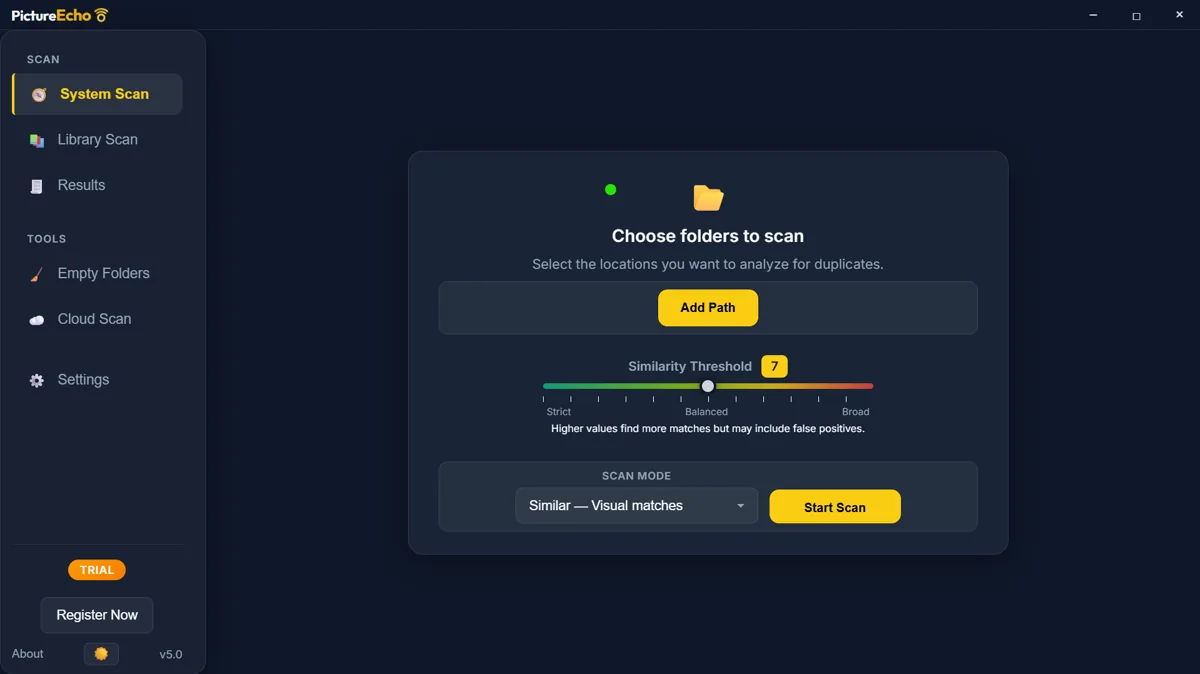
1. Add folders (System Scan)
- Install PictureEcho from the PictureEcho website.
- Open Scan → System Scan.
- Add Path and choose Pictures, the camera import folder, or another local folder. You can add more than one.
- If you manage photos in Adobe Lightroom or Windows Photos, Library Scan can pick up a detected catalog instead of a loose folder.
Windows 11 Photos may keep pictures in OneDrive without a useful local index. If Library Scan looks empty, use Add Path on the folder that actually has the files.
2. Choose Exact or Similar
- Similar — Visual matches (default): bursts, edits, resizes, recompressions. Set Similarity Threshold from 1 (Strict) to 13 (Broad). The in-app default is 9 (Recommended). Higher values find more groups and can include false positives.
- Exact: copies the app treats as exact matches. Use this when you only want obvious file copies, not near-lookalikes.
Do not start a huge library on Broad. Run Similar at the default first, then loosen only if the groups look too thin.
3. Review groups, then Recycle Bin
- Start Scan and wait for Results.
- Open a group. Use Preview when two shots look close.
- Keep one master. Select All But One, or Select Duplicates with a keep rule: Oldest, Newest, Largest, Highest Resolution, or Lowest Resolution.
- Prefer Recycle Bin over permanent Delete. Recycle Bin can be restored. Permanent delete cannot.
- Confirm the dialog.
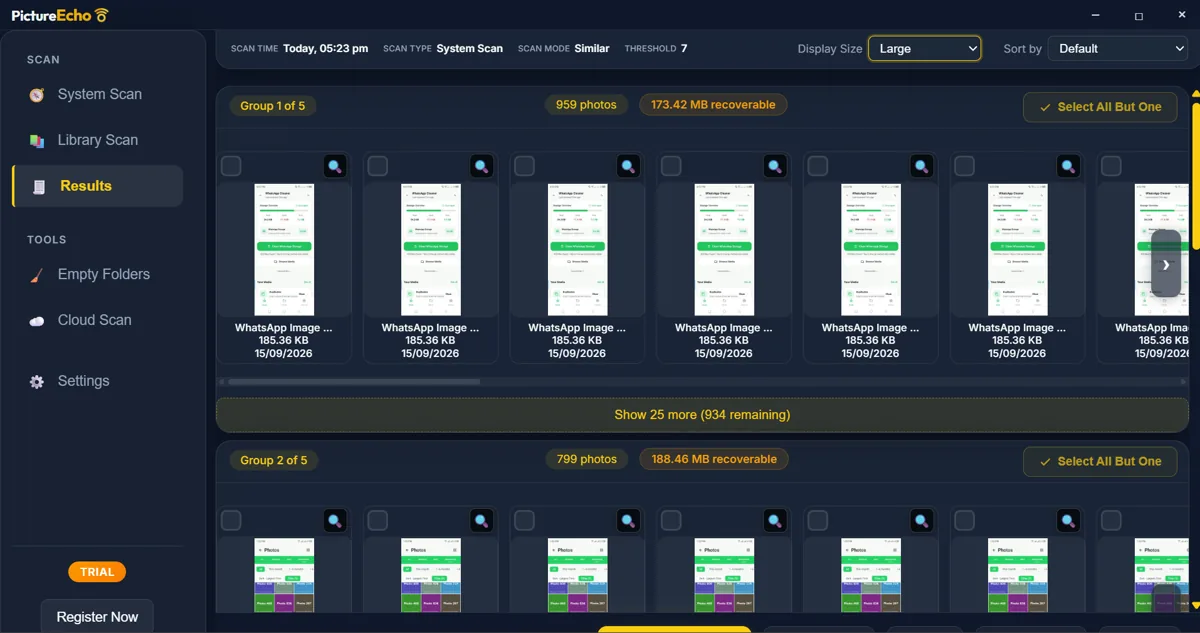
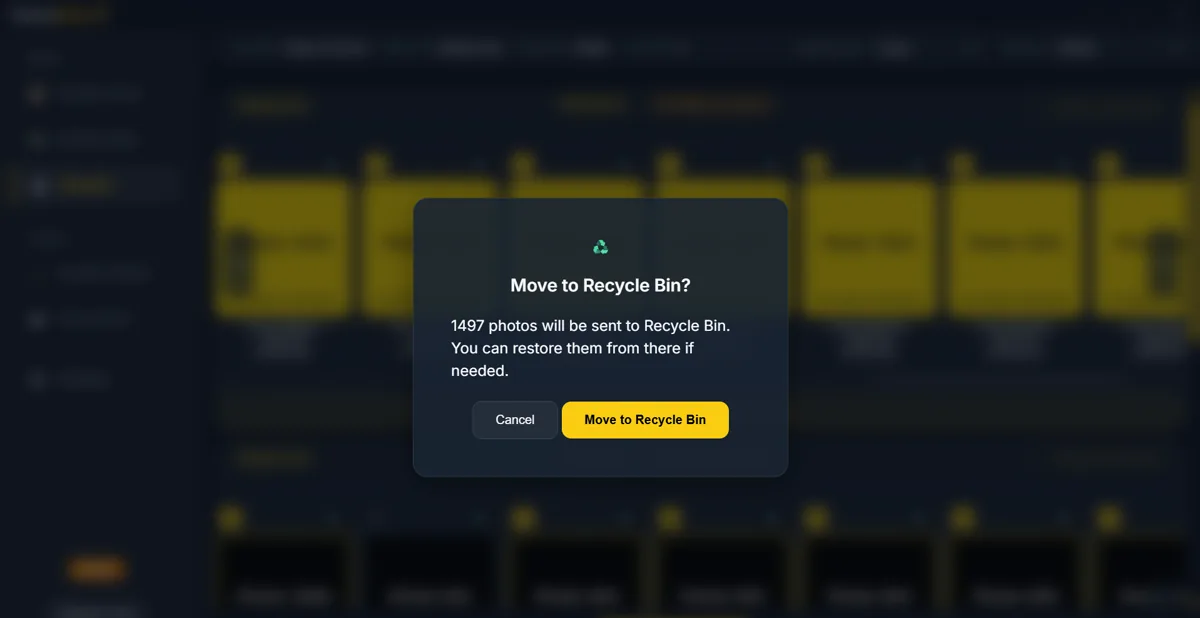
The free trial cleans 10 groups (not 10 photos). After that you need a license — check the live register page; we will not invent a price here.
What PictureEcho is not
- It does not scan video.
- It does not download OneDrive / iCloud placeholders. Those files are skipped until they exist on disk.
- It does not scan Google Photos in the browser. That is a different tool.
If OneDrive skipped your photos
That skip is expected. Files that are “online only” are not local pictures yet.
Option A — stay on the PC: In OneDrive, download / make available offline, then scan that folder again in PictureEcho.
Option B — the files live in the cloud: PictureEcho Pro includes Cloud Duplicate Finder. That is a web app. It can find exact duplicates in Google Drive and OneDrive, and similar photos on those two clouds. PictureEcho’s desktop Cloud tab opens CDF; it does not read your OneDrive folder itself.
Google Photos (photos.google.com) is a third place. Do not point the Windows scanner at it.
Exact duplicates vs similar photos
Exact duplicates are the same file content for practical cleanup. Once you confirm which copy to keep, they are the safest deletes.
Similar photos are near-matches: bursts, a crop, a filter, a smaller export. PictureEcho’s Similar mode is meant to surface candidates. A broader slider finds more — and will occasionally group photos that only share a sky. When in doubt, keep the shot.
Safety checklist before you delete
- Review similar groups. Do not Recycle the first Broad scan unattended.
- Prefer Recycle Bin. Empty it only after you have opened the keeper.
- Keep the highest-resolution original when the pair differs.
- Start with one folder (Screenshots or Downloads) if Pictures is huge.
- After a large cleanup, leftover empty directories can be removed with PictureEcho’s Empty Folders tool — that delete is permanent, so confirm the list.
- Videos, PDFs, and mixed Downloads are a file job (Clone Files Checker File Search), not this photo workflow. Desktop CFC does not find similar photos — that stays PictureEcho.
FAQ
Does Windows 11 have a built-in duplicate photo finder?
No. Microsoft’s own Q&A answer is that Windows 11 has no built-in tool to find and delete duplicate images. File Explorer and Photos do not replace a content or visual scan.
Can File Explorer find duplicate photos?
It can sort and search. It cannot tell you that IMG_1201.jpg and sunset-final.png are the same picture.
Does the Windows Photos app delete duplicates automatically?
No. You can browse and delete by hand. There is no gallery-wide automatic duplicate finder in Photos.
What is the safest way to delete duplicate photos on Windows?
Preview the pair, keep one master (usually the largest or sharpest), send extras to the Recycle Bin, and empty the Bin only after you check the remaining file.
Why did PictureEcho skip my OneDrive photos?
Cloud-only placeholders are not on the disk. Make them available offline, or use Cloud Duplicate Finder (with PictureEcho Pro) for Drive / OneDrive in the browser.
Can PictureEcho find similar photos, not just exact copies?
Yes. Similar mode groups visual matches. Exact mode is for copies the app treats as exact. Use Similar for bursts and exports.
Will this work on Windows 10 as well as Windows 11?
The same gap exists on Windows 10: no built-in photo duplicate finder. PictureEcho’s Windows build is the desktop app this article describes. Check the live download page for the OS list.
Is PictureEcho only for Windows?
This article is Windows. There is a Mac edition on the same product site, and an Android how-to if the same job is on a phone.
Clean the Pictures folder without guessing
Explorer is fine for a handful of (1) files. Photos is for looking. For bursts, exports, and copies with new names, scan locally, review the group, and Recycle only what you have checked.
Open PictureEcho, add one folder, run Similar at the default threshold, and keep one photo per group:
Use the button below to go to pictureecho.com.