
Error 0xc000007b is an application load-time error. A program may fail to load with the following error message:
The application was unable to start correctly (0xc000007b). Click OK to close the application.
This error shall not be taken lightly as it has the potential to cause irreversible system malfunction. To fix it automatically try scanning for Registry errors in Windows, clean system junk.
Affected programs/ games:
- AIO 210
- Avast Antivirus
- Battlefield 4
- Dragon Age Inquisition
- Origin
Reinstall Microsoft DirectX from Scratch
The first possibility is that Microsoft DirectX files could be corrupt. Delete the files listed below, download updated version from the Internet.
- Double click Computer icon on Desktop.
- Open the following directory:
C:\Windows\System32 - Delete following files:
- xinput1_1.dll
- xinput1_2.dll
- xinput1_3.dll
- Visit Microsoft Download Center. Download the latest version of Microsoft DirectX.
Run Game Launcher as Administrator
The game launcher file may require administrative privileges to function properly. Make sure you run it as administrator.
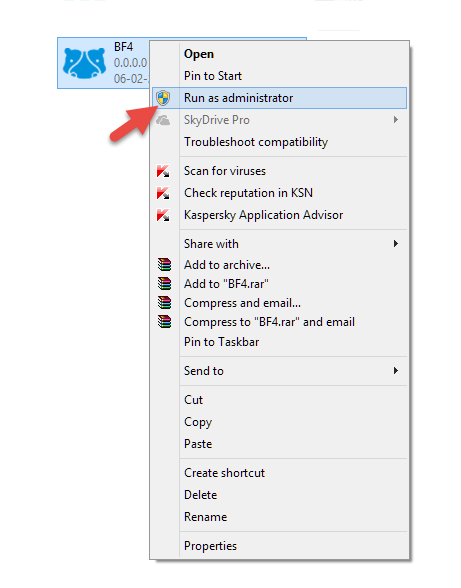
- Open the directory containing game launcher file. Example:
C:\Program Files (x86)\Origin Games\Battlefield 4 - Right-click the executable file, select Run as administrator. Example: BF4.exe.
Disable Origin-in Game
Some computers do not support the Origin-in Game feature. Disable it to fix error 0xc000007b.
- Open Steam and go to Game Library.
- Right-click Battlefield 4 game icon, select Properties.
- Uncheck the box labeled “Origin-in-game”.
- Click Apply.
Delete Corrupt Steam Update Files
Verify corruption of Steam update files. Delete them if they are corrupted.
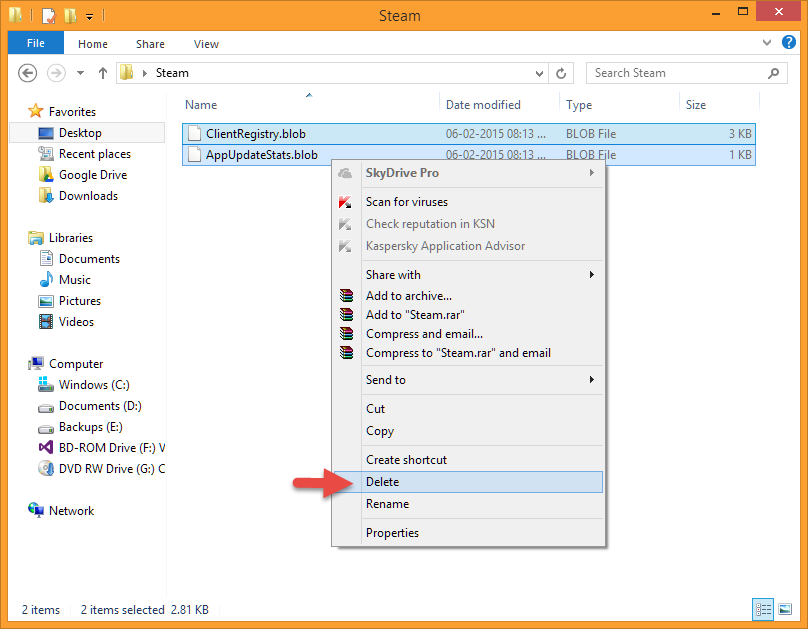
- Exit Steam application.
- Double click Computer icon. Open following directory:
C:\Program Files\Steam - Move following files to Recycle Bin:
- AppUpdateStats.blob
- ClientRegistry.blob
- Restart your PC.
Reinstall NVIDIA Display Control Panel and HDMI Audio
To fix error code 0xc000007b uninstall and reinstall NVIDIA Display Control Panel and HDMI Audio as follows:
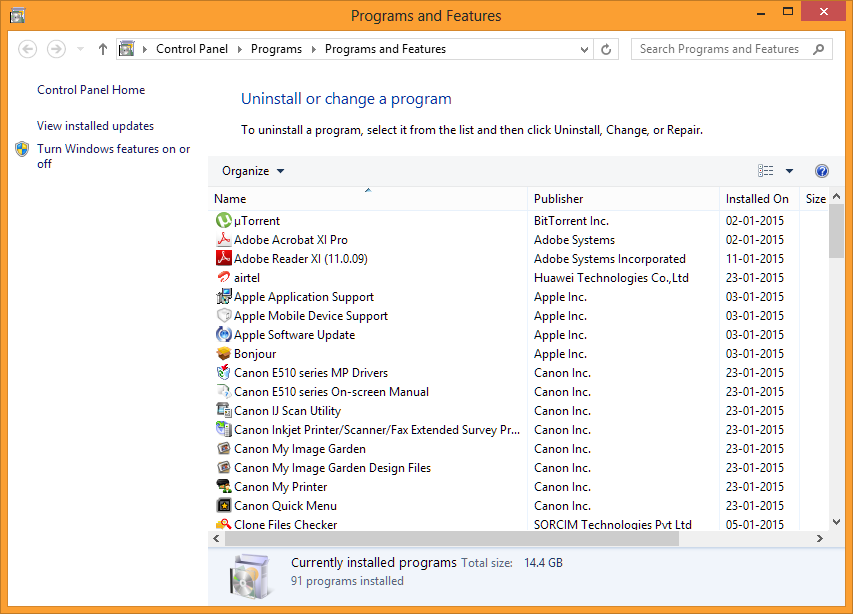
- Press Windows Key + X, select Programs and Features.
- Uninstall following programs. Right-click and select Uninstall option.
- NVIDIA Display Control Panel
- NVIDIA HDMI Audio
- NVIDIA Display Driver
- NVIDIA nView Desktop Manager
- NVIDIA PhysX
- Follow the on-screen wizard. Restart your PC after successful completion.
- Visit NVIDIA Download Center and download your drivers again.
- Specify the following:
- Product type
- Product series
- Product
- Operating system
- Language
- Download the latest compatible driver available.
Reinstall Visual C++ Redistributable
Many programs and games initiate Microsoft Visual C++ Redistributable files during runtime. Reinstalling the package will fix your problem.
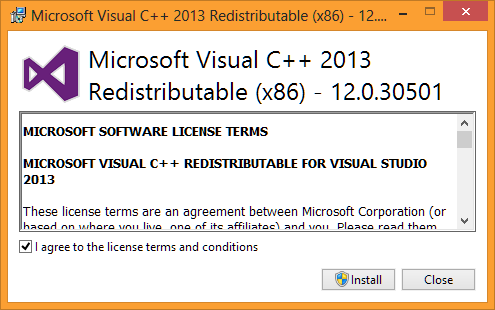
Resolving Problem with Steam-based Games
- Locate the following folder:
C:\Program Files (x86)\Steam\SteamApps\Common - Press F3 key on your keyboard. Type “vcredist_x86.exe”
- You have now the search results opened up. Right-click the specified file, select Run as administrator.
In case of other programs visit Microsoft Download Center to download-install Visual C++ Redistributable.
Download Missing DLLs
If you’re encountering error 0xc000007b with Adobe Photoshop Lightroom, download missing DLLs.
- Download Lightroom 64 Bit DLL package from Adobe Download Center.
- Open the Zip file using a free file compressor program. Extract the following two files to a temporary directory. Example: Desktop
- msvcr100.dll
- msvcr80.dll
- Copy missing DLL files to the following directory:
C:\Program Files\Adobe\Adobe Photoshop Lightroom [ProgramVersion]\