
A converted movie, a phone export, and the original clip can all be the same recording with different names and sizes. Windows File Explorer will not tell you they match. These five methods cover what you can do by hand, what an exact scan finds, and how Similar Video Finder groups re-encoded videos and audio on a Windows PC.
1. Sort obvious copies in File Explorer
Open your Videos or Downloads folder, switch to Details view, and arrange the list by filename or file size. Look for names that already say Copy or (1), or two files that share a size.
This only works when the extra file is easy to see. A re-save from a converter usually gets another filename and a different size, so it will not stand next to the original. Play both clips if you are unsure, then send the extra to the Recycle Bin. Use this pass for a small folder, not a whole drive.
2. Find files that are identical
Some extras are true copies: the same file saved in two folders. An exact scan is the right job for those. Similar Video Finder Quick Scan reports only identical files. It is faster than a similar scan because it does not look for a resized or re-encoded version.
Leave this method for backup folders and copy-paste leftovers. If the second file was compressed or saved in another format, Quick Scan will miss it.
3. Scan for similar videos and audio
This is the method for clips that look the same on screen but are not the same file. Open Similar Video Finder, stay on Deep Scan, add the folders you want, and start the scan. Deep Scan groups identical files and similar copies. Video and audio both run in that mode unless you switch one off.
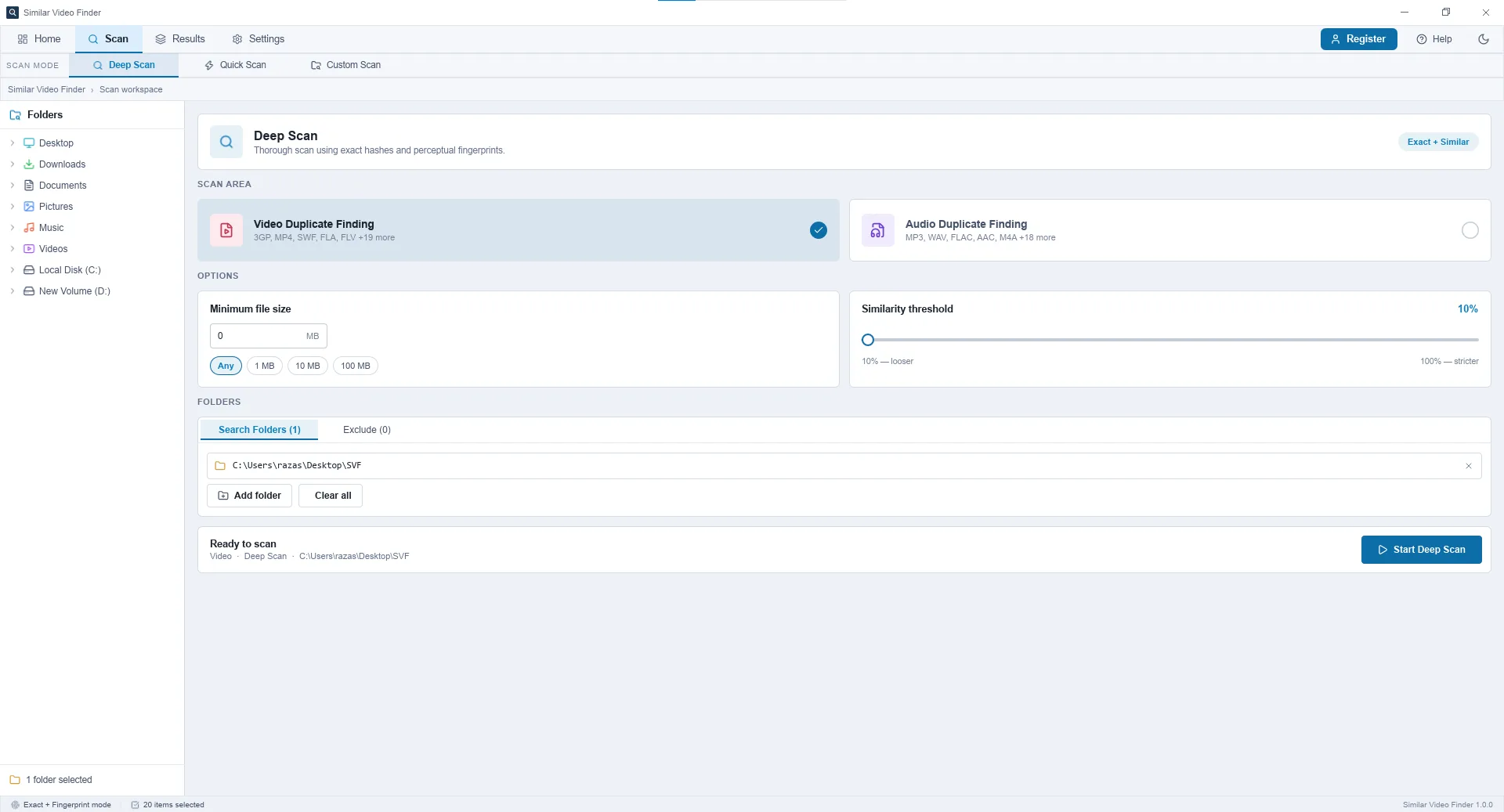
Custom Scan lets you turn exact matching, similar matching, or both on for the folders you pick. Similarity can be set from 10% to 100%, and it starts at 75%. A lower setting groups more loosely. Changing the setting later regroups the results you already have; it does not re-open the files.
The work stays on your computer. Clips are not sent to a server. Folders can be added, left out, or protected. A protected file can still appear in a group, but it is never marked for removal.
A scan reads only the extensions listed under Settings. The defaults cover common video and audio types such as mp4, mkv, mov, avi, mp3, wav, and flac. You can add or remove extensions there. Theme and updates are on the same Settings page, and changes save at once.
4. Compare two copies before you decide
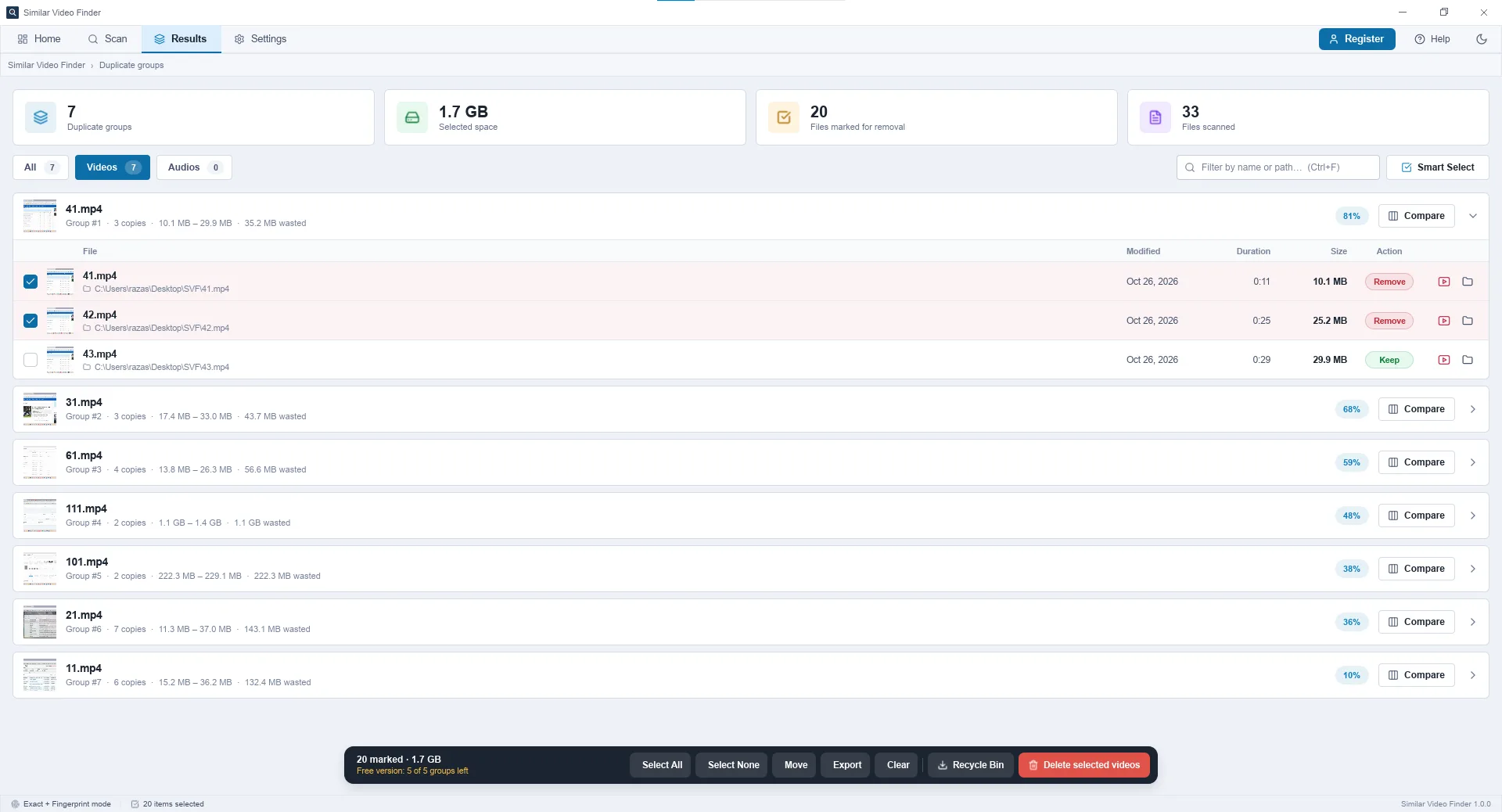
When a group opens, do not delete from the list at a glance. Compare shows two copies with thumbnails, size, duration, resolution, and matched segments. It is not the player. Use Play on a result if you want to watch the file in the app.
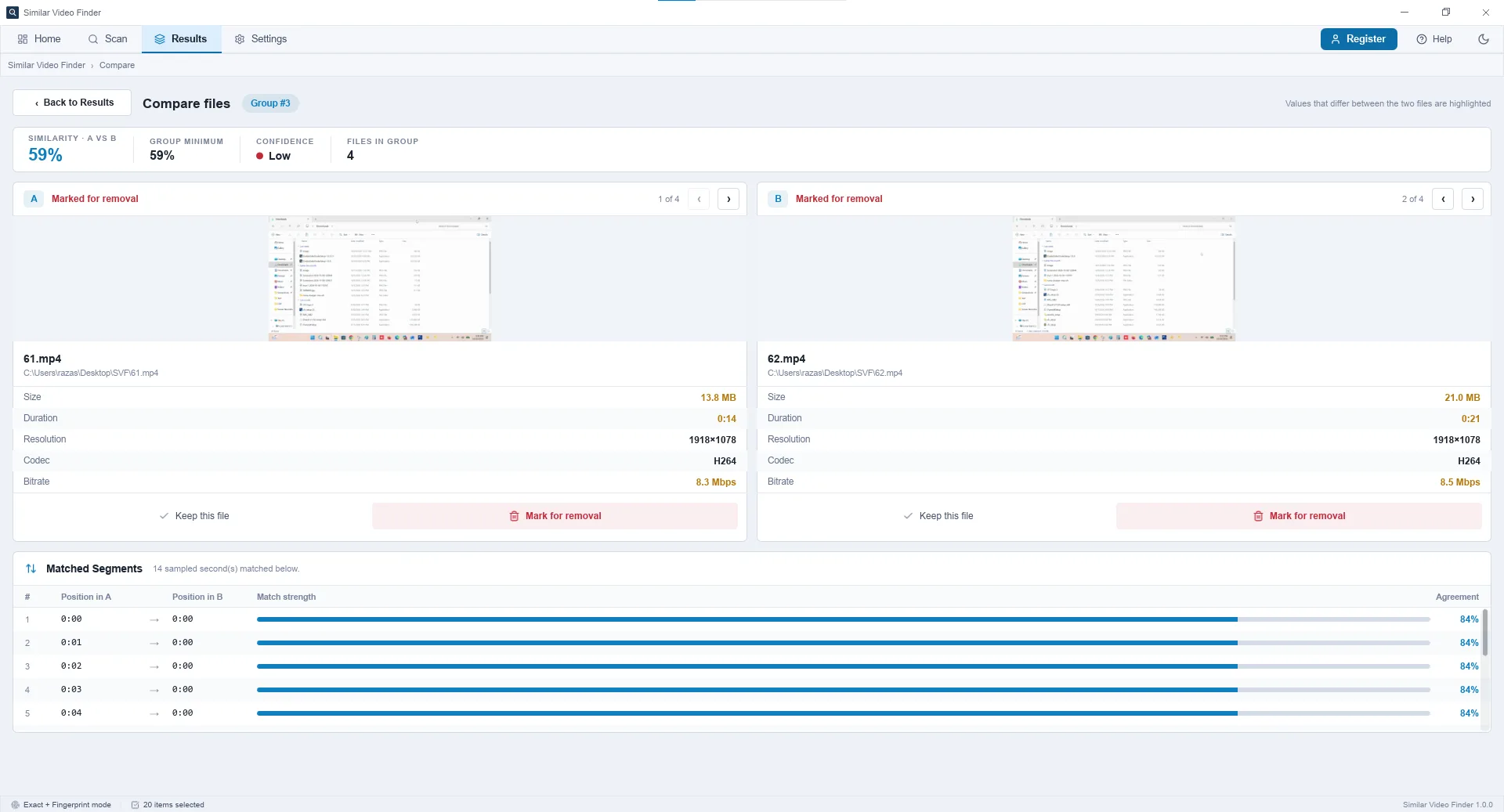
Filter the list with All, Videos, or Audios, or search by name or path. Export writes the current groups to a CSV if you want a record before you clean up.
This step is the one that keeps you from removing the copy you meant to keep, especially when one file is shorter or a lower resolution.
5. Keep one file, then Recycle, Move, or delete
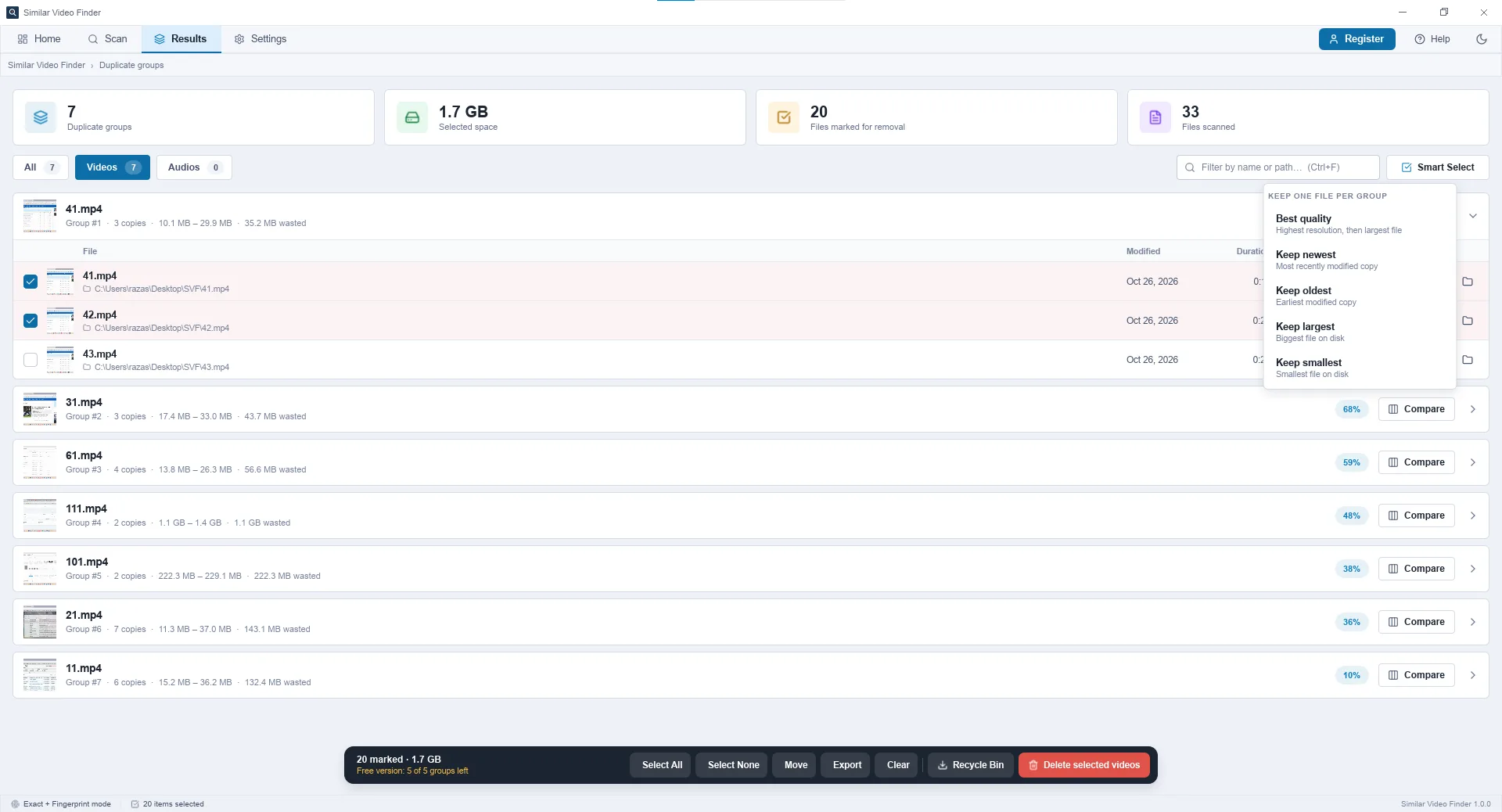
Each group needs one keeper. By default the app keeps the largest file. Smart Select can mark the extras using best quality (highest resolution, then largest file), newest, oldest, largest, or smallest.
Recycle Bin puts the marked files in the Recycle Bin without a confirm box, so you can restore them later. Move puts them in a folder you choose. Delete permanently always asks first. Clear only empties the result list; it does not touch the files.
Scanning, comparing, and playing are free. Moving or removing files from more than five groups in total needs a license. Removing the program from Windows does not give those five groups back.
What this app does not do
This product runs on Windows and is built for videos and audio. It does not find similar photos, and it does not scan PDFs, zips, or cloud libraries. It will not catch every crop, rotation, or reverse. After you finish, check the Recycle Bin before you empty it.