
You can copy files between cloud accounts without downloading them to your PC or sending them back through your home upload connection. Easy Cloud Manager connects a source and a target in the browser, copies the folders you select, and leaves the source files where they are.
Choose the source and target clouds
Easy Cloud Manager is a browser app, so there is nothing to install. Connect each account from the dashboard; Google Drive, OneDrive, Dropbox, Box, and pCloud open their own sign-in flow, while Amazon S3 uses a bucket name and access keys. For OAuth clouds, you sign in with the provider rather than giving Easy Cloud Manager that cloud password.
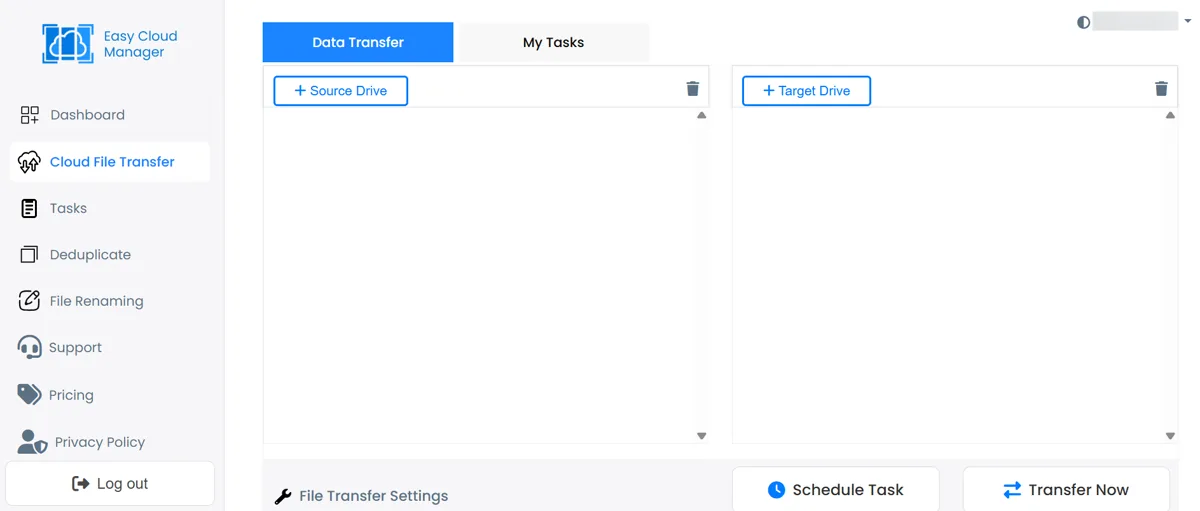
The transfer page keeps the two sides separate. Load one connected account as the Source Drive and another as the Target Drive, then work from the folder trees shown side by side.
Pick folders instead of copying the whole account
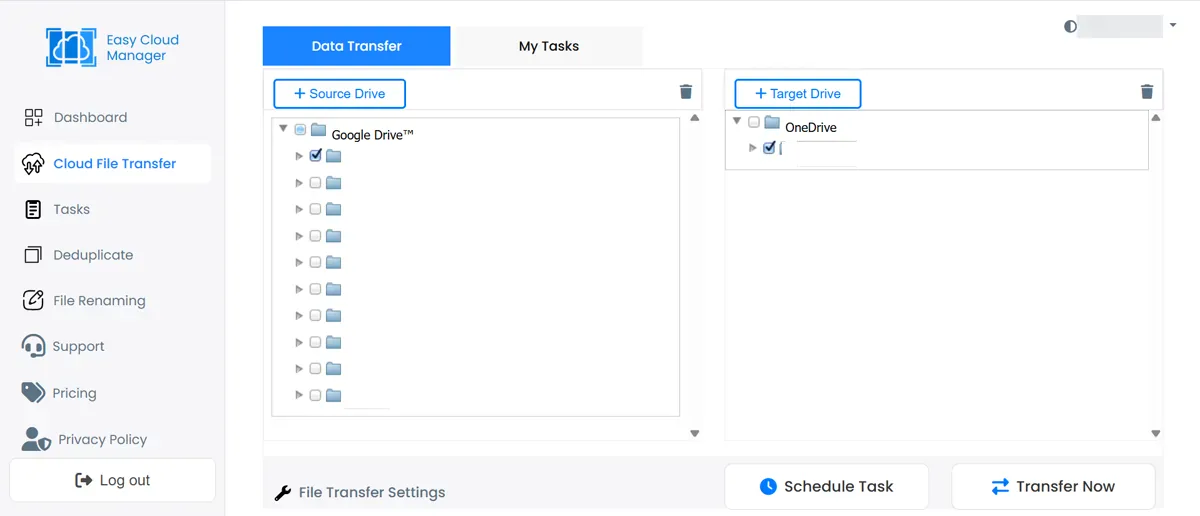
After both drives load, tick one or more source folders and choose a target folder. Easy Cloud Manager walks the selected folders recursively and rebuilds that structure on the target, which lets you copy a project or archive without bringing across everything else in the account.
The explorer is a folder tree, not a file preview. Use the provider’s own interface if you need to inspect an individual file before the transfer.
Filter what the transfer includes
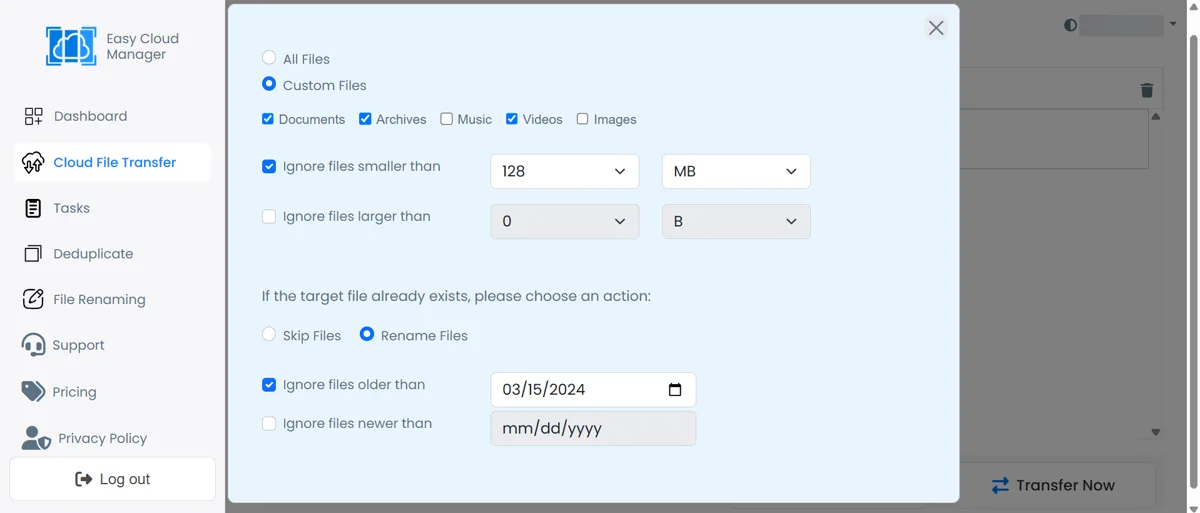
File Transfer Settings can narrow the job by file type, size, or date. You can take all files or choose documents, archives, music, videos, and images, then ignore files outside the limits that matter to this copy.
A same-name file on the target needs a rule as well. Skip Files leaves that target name alone; Rename Files uploads the incoming copy with a numbered name such as name (1).ext. This resolves a name clash during transfer—it is not a batch-renaming tool.
The copy does not use your home upload bandwidth
For a cross-cloud job, Easy Cloud Manager downloads the selected files to its server, uploads them to the target, and removes the working folder after the upload. Your browser starts the task, but your home connection is not the pipe carrying every file between providers.
That does not mean the files never touch a server: they pass through Easy Cloud Manager while the job runs. A copy between two connected Google Drive accounts is the exception, because it can use Google’s copy API instead of the download-and-upload path.
Run the copy and check My Tasks
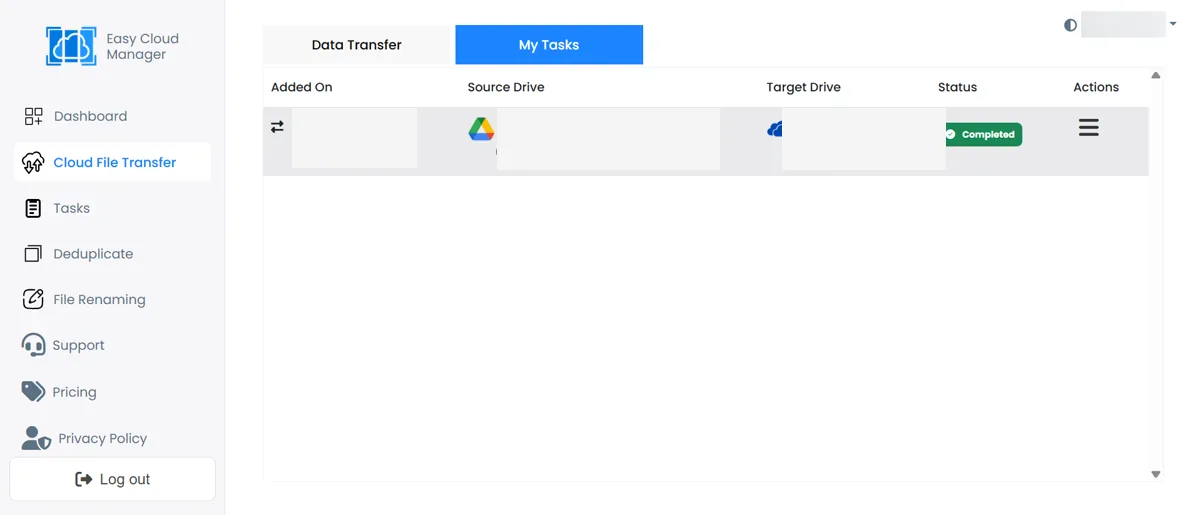
Transfer Now creates the task and inventories the matching files. My Tasks then shows whether the job is in progress, completed, or failed, so check the result there before doing anything with the source account.
The source is not emptied when the task completes. Easy Cloud Manager copies; it does not offer a move-and-delete-source switch, real-time sync, or a mirror that keeps both clouds identical.
Common questions
Does Easy Cloud Manager delete the source files?
No. A transfer copies the selected files and leaves the source in place. Delete anything from the source only after you have checked the target copy yourself.
Do files pass through Easy Cloud Manager’s server?
Cross-cloud files do pass through its server during the job, and the working folder is removed after upload. The transfer does not use your home upload connection as the path between clouds.
Can the same connected drive be both source and target?
No. The same connection cannot sit on both sides of one task, although you can connect two different accounts from the same supported provider.