
You can find duplicate files with different names by scanning selected folders for matching content. A copy called final, backup, Copy, or something ending in (1) can still join the same Clone Files Checker group, where you review the files, keep one, and move the extras.
Windows search follows the file name
File Explorer search follows the name you type. Rename a copy to final, backup, or Copy, and a search for the original name will miss it even though the file itself has not changed. The new name hides the copy; it does not make the copy unique.
File Search compares the content
File Search starts with the folders you choose and uses the filename only as information in the result, not as the match. Files must share a size before the scan fingerprints their first and final 64 KB. That content check allows renamed copies to appear together without treating the name as proof.
A file with a unique size never reaches hashing, because a differently sized file cannot be the same copy. Matching candidates appear in one group even when every name is different. Photos that merely look alike stay out of these results.

Renamed copies show up in one group
View Results places matching files in groups, and the names within one group may all differ. Select a row to preview the file, open it, or show its location in Explorer before choosing which copy stays. The paths and counts on this screen belong to one scan, not to the product as a whole.
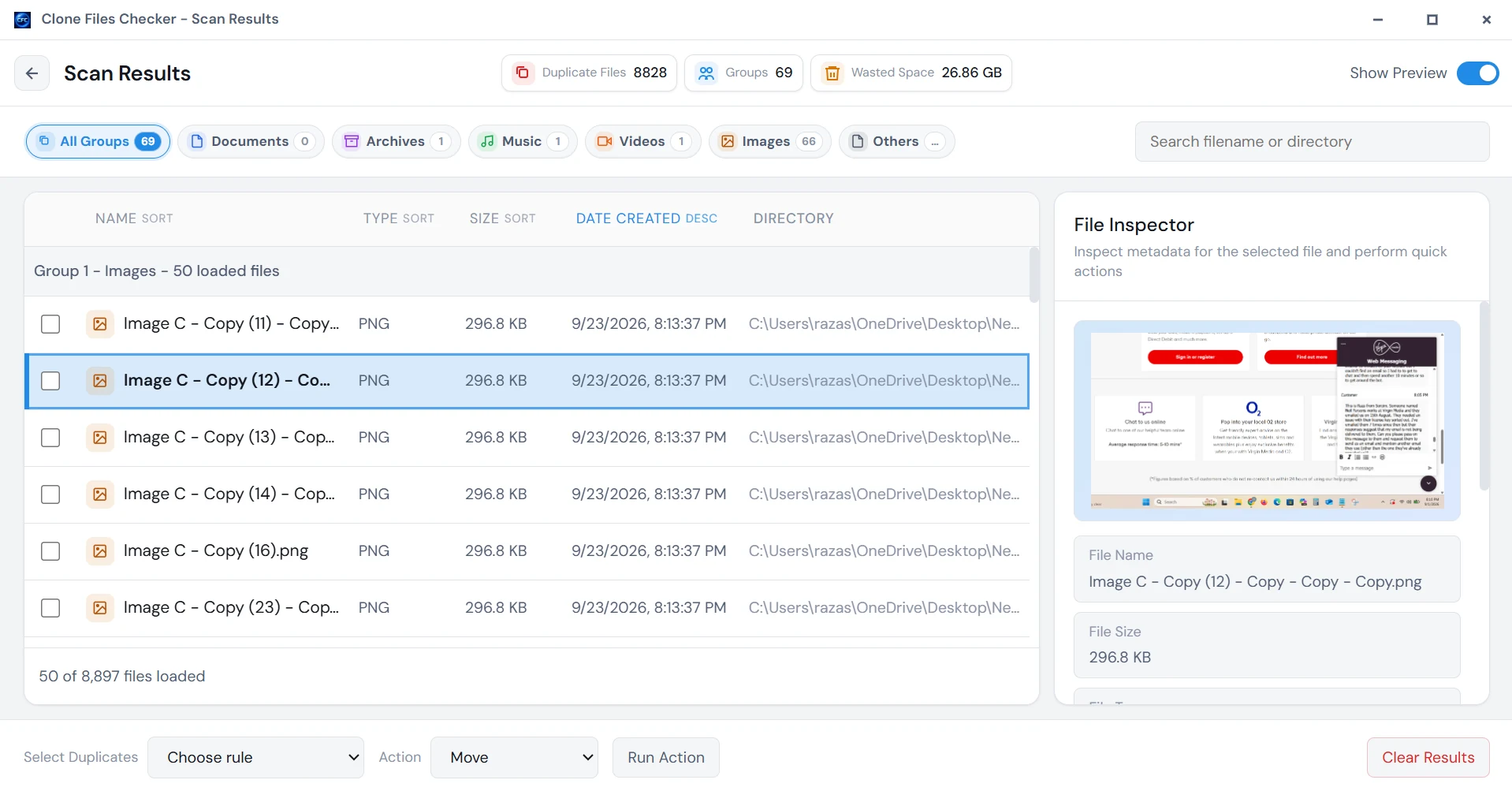
Keep one, then move the extras
Use a retain rule that fits the copy you trust: oldest or newest created, or least or most recently modified. The rule leaves one file unchecked and marks the others, but those marks still deserve a quick review. Select All also checks the copy you meant to keep.
Move sends the marked files to a folder you choose, which gives you somewhere to check them after the cleanup. Delete removes them from the disk and does not use the Recycle Bin. Scanning is free; moving or deleting more than 10 groups requires a license.
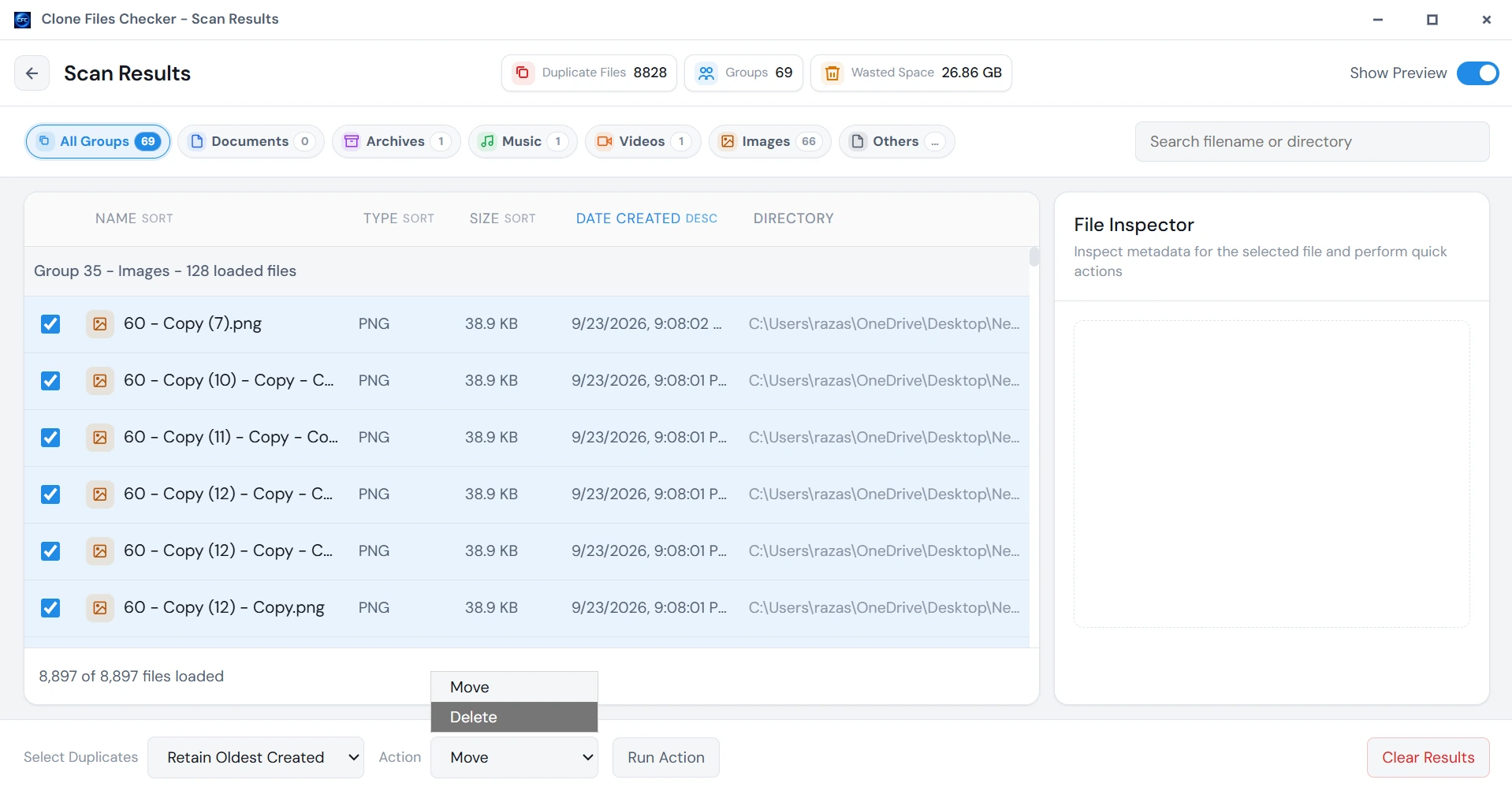
If you want the scan from the folder list through a permanent delete, see Find duplicate files on Windows 11.
Other ways to find duplicate files with different names
PowerShell offers a manual check because a full-file hash ignores the filename. Replace C:\Folder below with the location you want to scan, and the command prints paths that share a SHA-256 hash even when one says final and another says Copy. It reports the matches without deleting them.
Get-ChildItem -Path "C:\Folder" -Recurse -File -ErrorAction SilentlyContinue |
  Get-FileHash -Algorithm SHA256 |
  Group-Object -Property Hash |
  Where-Object { $_.Count -gt 1 } |
  ForEach-Object { $_.Group.Path }
dupeGuru and AllDup also search a folder for duplicate files. The steps above use Clone Files Checker so you can preview a group, keep one file, and move the extras.