
You can find duplicate files on Windows 11 by scanning the folders you choose for matching content. Clone Files Checker groups those exact copies even when the names differ, so you can review each group, keep one, and move or delete the extras.
Pick the folders, then start File Search
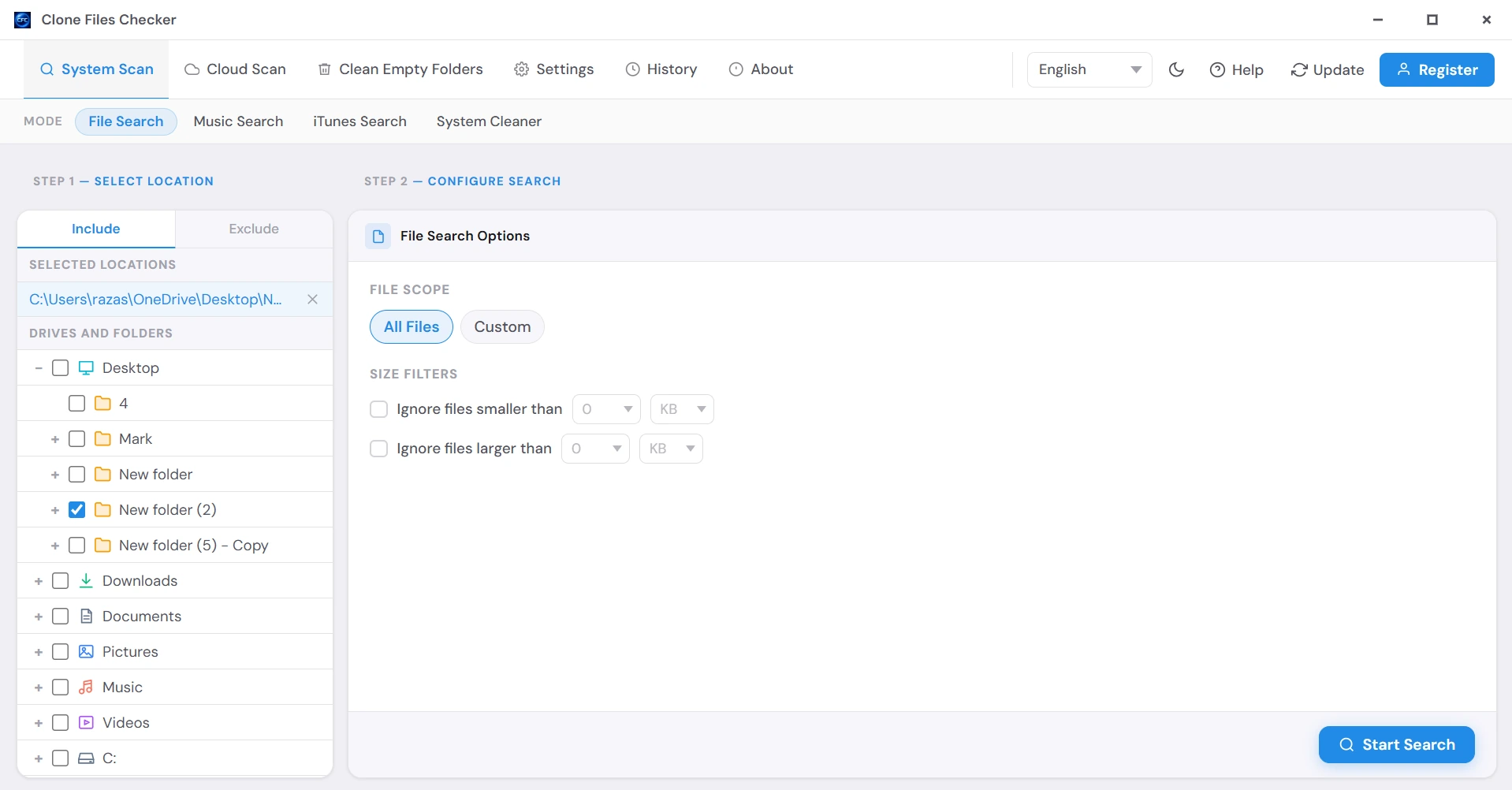
Open File Search and tick the folders that matter, such as Downloads or a project folder. Protected locations, including Windows and Program Files, are already excluded; from there, choose All Files or narrow the scan to documents, videos, images, music, or archives, with an optional size limit. Start Search runs the scan. Choosing the folders does not.
The scan matches file content, not the name
Windows can save the same PDF or zip twice and give the second file another name, yet File Search can still group the copies. Files must share a size before they reach hashing; the scan then fingerprints the first and final 64 KB of each candidate. A file whose size is unique never reaches that stage.
This is an exact-copy scan for the same file saved more than once. It is not a search for photos that merely look alike.

Keep one file in each group
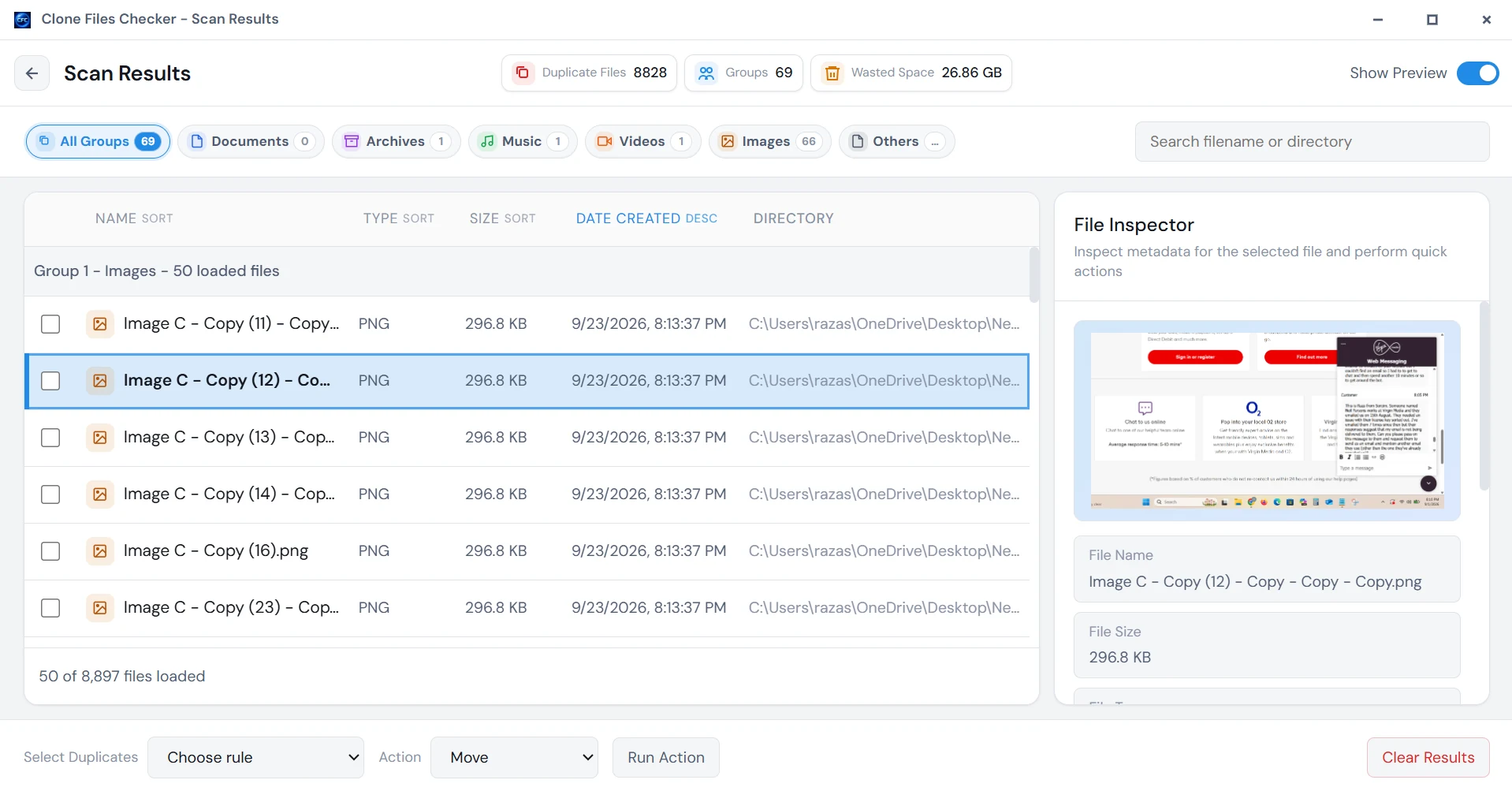
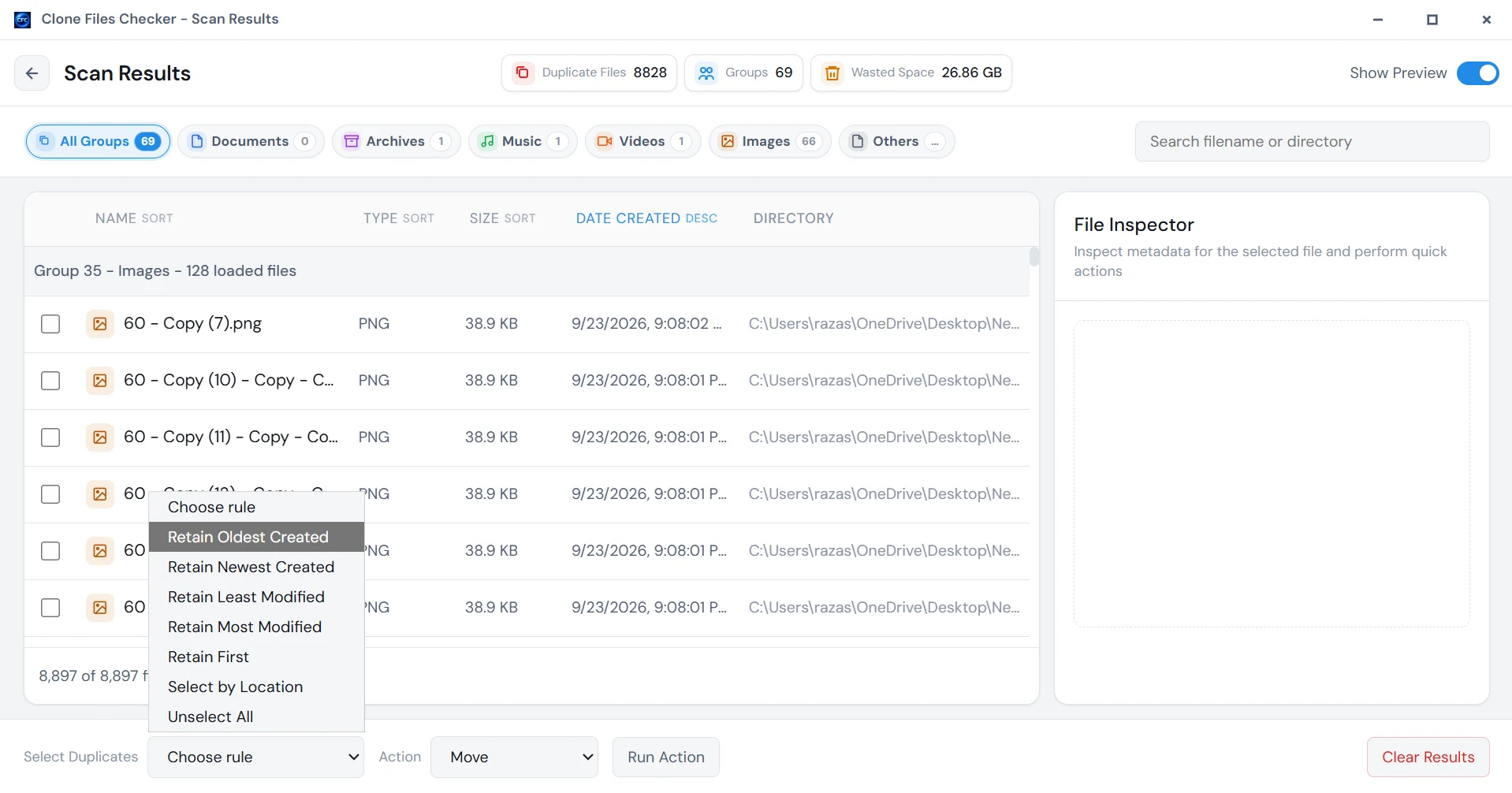
In View Results, filter the groups by type and inspect a file before deciding which copy stays. Select Duplicates can retain the oldest or newest created file, or the least or most recently modified one; the other copies are marked for action. Look over the marks before continuing. Select All also checks the copy you meant to keep.
Move the extras, or delete them from the disk
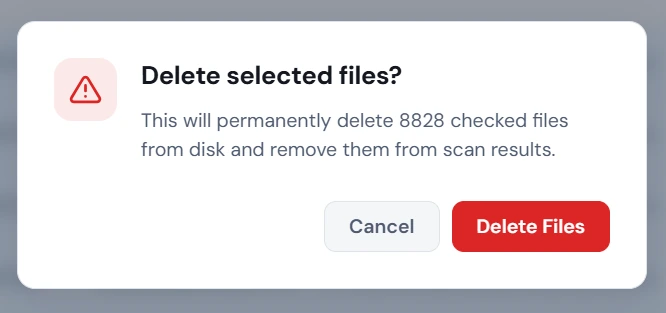
For a first cleanup, Move is the safer action because the selected files remain in a folder you choose. Delete removes them from the disk after a confirmation and does not send them to the Recycle Bin. The scan is free; moving or deleting more than 10 groups requires a license.
History records completed move and delete batches, but it is not an undo. Clear Results removes the saved result list, not files from the disk, and it cannot bring a deleted file back.
Other ways to find duplicate files
Windows does not include a duplicate-file scanner, although PowerShell can list exact copies by hashing every file in a folder. Replace C:\Folder below with the location you want to check; paths that share a SHA-256 hash are printed together even when their names differ. The command only reports what it finds, and a large folder can take time because every file is read in full.
Get-ChildItem -Path "C:\Folder" -Recurse -File -ErrorAction SilentlyContinue |
  Get-FileHash -Algorithm SHA256 |
  Group-Object -Property Hash |
  Where-Object { $_.Count -gt 1 } |
  ForEach-Object { $_.Group.Path }
Other desktop programs that search a folder for duplicate files include dupeGuru and AllDup. The steps on this page use Clone Files Checker so you can review each group, keep one file, and move or delete the extras.
Common questions
Can Clone Files Checker scan a mapped network drive?
On Windows, mapped network drives can appear in the folder tree when Show Mapped Network Drives is enabled.
Does the desktop app scan cloud storage?
No. Its Cloud Scan tab points to Cloud Duplicate Finder; it does not connect to Google Drive, OneDrive, Dropbox, Box, or Amazon S3 inside the desktop app.
Does File Search find similar photos?
No. File Search is for exact copies. PictureEcho is the Sorcim desktop product for visually similar photos.