
Renaming files may seem simple when you’re dealing with just a few documents. But when you need to rename hundreds of photos, songs, or files at once, the process quickly becomes tedious and error-prone. Many users also run into another common problem: file name conflicts, where two files end up with the same name.
This is where Easy File Renamer becomes incredibly useful. Instead of renaming files one by one, you can rename entire groups of files using predefined rules. The software also provides a preview of the new file names so you can confirm the changes before applying them. In this guide, we’ll walk through how to rename files and handle file name conflicts safely using Easy File Renamer.
Why File Name Conflicts Happen
File name conflicts occur when two files in the same location try to use the same name. File name conflicts occur when two files in the same location try to use the same name.
For example, imagine renaming a set of photos to a new naming pattern such as Vacation_Photo_001, Vacation_Photo_002, and so on. If files with those names already exist in the folder, your system may prompt you to overwrite the existing files.
Situations like this can cause confusion, especially when managing large collections of images, documents, or music files. Without the right tools, it becomes difficult to keep track of which files should be replaced and which should remain unchanged.
Easy File Renamer helps reduce these risks by allowing users to preview file name changes before applying them.
How to Rename Files Using Easy File Renamer
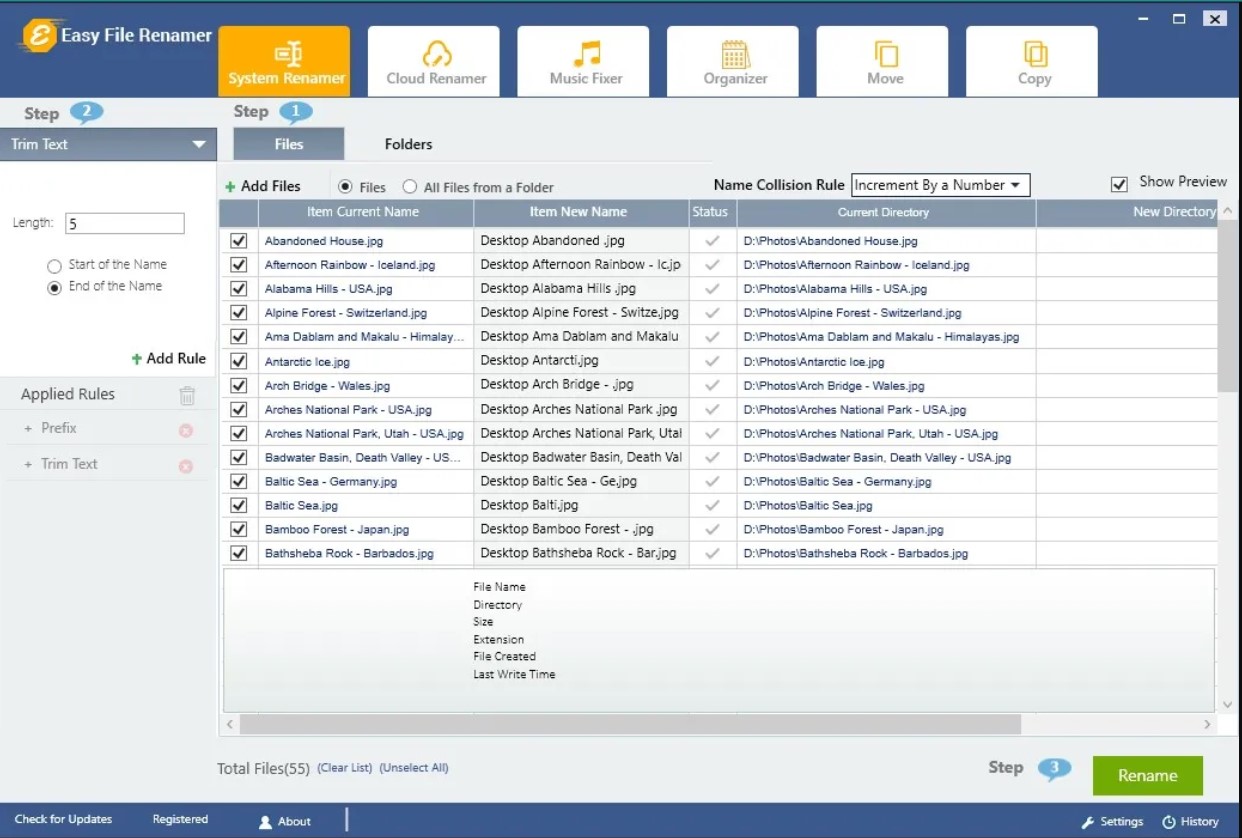
Easy File Renamer is designed to make batch renaming simple. The process follows a straightforward three-step workflow that allows you to rename multiple files in seconds.
Step 1: Add Files or Folders
Start by launching the software and selecting the Add Files or Add Folders option. This allows you to load individual files or entire directories into the renaming workspace. Once the files appear in the list, you can begin defining the rules that will modify their names.
Step 2: Choose a Renaming Rule
Easy File Renamer provides multiple renaming methods that help automate the process. You can even apply multiple rules at the same time, which makes it possible to restructure file names in a highly flexible way.
Some commonly used options include:
- New Name: assign a completely new name to selected files
- Add Prefix or Suffix: add text to the beginning or end of a filename
- Remove Text: delete specific characters or words from filenames
- Replace Text: substitute one word or character with another
- Trim Text: remove a specific number of characters from the start or end
- Insert Text: add text at a specific position in the filename
- Numbering: automatically add numbers to organize file sequences
- Uppercase / Lowercase / Title Case: adjust text formatting in filenames
Step 3: Preview and Apply Changes
Before the renaming process is finalized, Easy File Renamer displays a preview of the new file names. This preview feature is extremely useful because it allows you to review the results and confirm that the naming pattern looks correct.
Once you are satisfied with the changes, simply click the Rename button and confirm the operation.
How Overwriting Works During File Renaming
When renaming files in bulk, you may occasionally encounter a situation where the new filename already exists in the destination folder. In this case, the system may ask whether you want to overwrite the existing file.
Easy File Renamer helps minimize mistakes by showing a preview of all new file names before the operation begins. By reviewing the preview, users can detect potential conflicts early and adjust their naming rules if needed.
Tips for Safe Batch Renaming
When working with large groups of files, a few best practices can help ensure a smooth renaming process. Try these out:
- Always review the preview panel before applying changes. This helps catch naming conflicts or formatting issues early.
- Use numbering rules when renaming many files. Sequential numbers prevent duplicate names from appearing in the same folder.
- Avoid changing file extensions unless necessary. Modifying extensions can make files unusable if done incorrectly.
- Test renaming rules on a small group of files first. This helps verify that the naming pattern works as expected.
Final Thoughts
Managing large numbers of files becomes much easier when you have the right tools. Instead of renaming files one by one, Easy File Renamer allows you to apply powerful naming rules to entire folders at once.
With its preview feature and flexible renaming options, the software helps users rename files confidently while avoiding common issues like file name conflicts. Whether you’re organizing photos, documents, music libraries, or project files, batch renaming can save significant time and effort.
By understanding how renaming rules work and reviewing file name changes before applying them, you can safely manage even the largest file collections with ease.