
Duplicate files are a silent storage space killer. They pile up slowly with photos downloaded twice, music tracks copied as backup, and documents saved under other names. Before you realize it, you get notified that you are out of disk space, and your computer’s performance slows.
That is where duplicate file finders are useful. They assist you in scanning, detecting, and deleting copies of files with just a few clicks.
Two widely used options are CCleaner Duplicate Finder and Clone Files Checker. But which to use? And what do you need to know before handing over your files to a tool?
Let’s get to all the little details.
Introducing the Tools
1. CCleaner Duplicate Finder
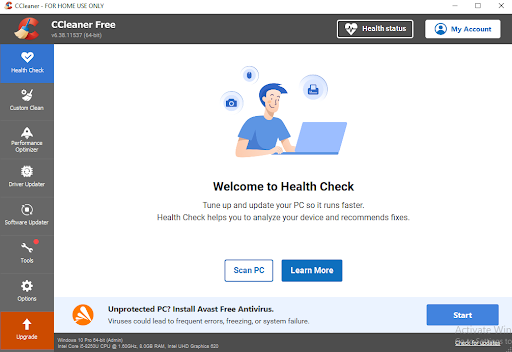
CCleaner is a well-known tool for deleting temporary files and controlling startup programs. It also has a duplicate finder feature within its “Tools” section. It lets users find duplicate files by matching names, sizes, and modified dates. CCleaner has the following advantages and limitations.
Advantages:
- Lightweight
- Built in CCleaner
- Free to use
Limitations:
- Basic duplicate detection
- No smart filters or preview
- No cloud storage integration
2. Clone Files Checker (CFC)
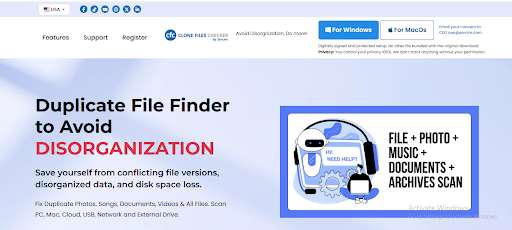
Clone Files Checker is a professional duplicate file remover designed for personal and professional use. It supports deep scans, file previews, and cloud drives such as Google Drive and OneDrive. Clone files checker has the following advantages and limitations:
Advantages:
- Smart scanning algorithms
- Custom filters (e.g., by location or type)
- User-friendly interface
Limitations:
- Not free (but has a free trial)
- More advanced options may seem difficult at first
Feature-by-Feature Comparison
Let’s compare the two tools based on key features that matter when managing duplicate files.
1. Scan Accuracy & Matching Criteria
- CCleaner: This tool uses simple matching criteria to find duplicates such as file name, size, and modified date. It may miss duplicates with different names or keep false matches.
- Clone Files Checker: This tool uses advanced technology to ensure precise detection, even if file names differ.
Verdict: Clone Files Checker wins. It provides more trustworthy scanning through advanced file hashing techniques, lowering the chances of deleting the wrong files.
2. User Interface & Ease of Use
- CCleaner: Simple interface, but looks old. Limited customization while scanning.
- Clone Files Checker: Provides an intuitive, modern interface with step-by-step instructions. It allows you to sort results by type, preview them, and view scan history.
Verdict: Clone Files Checker is again the winner with its more user-friendly approach, perfect for beginners and power users.
3. Preview Before Deletion
- CCleaner: Doesn’t have a preview feature. You have to check for each file path manually.
- Clone Files Checker: Before deleting files, it allows you to preview images, documents, music, etc. This way, the risk of deleting an important file is reduced.
Verdict: Clone Files Checker wins this because it has a preview capability that makes cleanup safer and smarter.
4. Cloud Storage Support
- CCleaner: Does not scan cloud storage at all.
- Clone Files Checker: Can scan and wipe duplicate files in OneDrive and Google Drive without downloading them.
Verdict: Clone Files Checker takes the win here again. It’s ideal for individuals whose cloud storage contains duplicate backups or images.
5. Auto-Selection Rules & Smart Deletion
- CCleaner: This tool offers basic selection rules like keeping one copy and removing the rest. No backup alert or file protection.
- Clone Files Checker: It offers custom auto-selection, file backup choices, and even automated deletion rules (e.g., keep newest, delete oldest).
Verdict: Clone Files Checker offers greater control and protection during cleanups.
6. Performance and Speed
- CCleaner: Reasonable speed for small folders, but gets slower with bigger directories or complicated file types.
- Clone Files Checker: Suitable for massive data sets and has parallel processing support, which makes it faster on new PCs.
Verdict: Clone Files Checker is better suited for bulk data.
7. Support & Updates
- CCleaner: It is updated frequently, but the duplicate finder isn’t a focus feature. The free version has limited customer support.
- Clone Files Checker: It offers specialized assistance and continuous updates for duplicate file management. It provides comprehensive checklist guides and mail support.
Verdict: Clone Files Checker takes the prize in continuous updates and personal assistance.
What You Should Know Before Using a Duplicate Finder Tool
Before you click “scan and delete,” consider the following tips:
- Always Look Before You Click. Delete
No tool is smart enough to never make an error. That’s why it is smart to utilize preview functionality and visually scan important files manually.
- Back Up Key Information
Before mass deletion, back up system folders or shared drives. By doing this, your important files would be safe.
- Exclude System or Program Files
Avoid scanning system folders such as “Windows” or “Program Files.” You might delete important pieces.
- Look out for Music & Photos
Some copies will have some variation in metadata or quality. Ensure you are not deleting a superior version.
- Begin Slow
Begin by scanning one folder at a time to experience how the tool functions, particularly if it’s your first time.
Real-World Use Cases Where Clone Files Checker Is a Better Choice
- Professional Photographer Handling RAW & JPEG Copies
Alex is a freelance photographer with thousands of high-res RAW files and client folders spread over an external hard drive, Google Drive, and local storage. With time, copies of edited and original files begin to accumulate.
- Problem with CCleaner: It doesn’t scan cloud drives and can’t distinguish files with similar names but different content. No previews before deleting files make removal dangerous.
- Why CFC wins: With content-based matching and image previews, Clone Files Checker makes it easy for Alex to find true duplicates, even if file names or sizes differ slightly. It can also declutter cloud storage without syncing everything.
- Student Organizing Downloads, Assignments & Projects
Fatima is a university student. She has limited space on her disk as her downloads folder contains lecture notes saved numerous times, PDFs renamed and re-edited, and screenshots.
- Problem with CCleaner: It can sometimes miss renamed files under basic matching, and she can’t preview before deleting.
- Why CFC wins: CFC digs deep, offers PDF previews, and even auto-selects the older ones while keeping the latest ones intact.
- Casual User Who Simply Wants Their PC to Run Faster
Samira doesn’t understand technical things. She just wants to make space in her PC because it is working very slowly. Her PC folders overflow with duplicate songs, memes, and outdated backups.
- Problem with CCleaner: She has no idea what safe files she can delete. One mistaken click and you lose all the data.
- Why CFC wins: Minimalist interface, preview for files, and the ability to restore deleted files mean Clone Files Checker is a hassle-free tool even for occasional users.
Why Clone Files Checker Is the Smarter Option
CCleaner’s Duplicate Finder might be good for simple cleanups, but it is not a complete duplicate file solution. When you have thousands of files, or you want something safer, smarter, and more flexible, Clone Files Checker is the way to go.
It does more than simple scans:
- Reclaims wasted space
- Organizes photos and music easily
- Clean your cloud drives
Frequently Asked Questions (FAQs)
- Does Clone Files Checker detect duplicate photos?
Yes, Clone Files Checker can detect and delete duplicate photos by name, size, and content, even with different names.
- Does Clone Files Checker support Google Drive and Dropbox?
Yes. Clone Files Checker supports scanning from cloud storage such as Google Drive and Dropbox, and making space without downloading the files locally.
- Is there a free Clone Files Checker version?
Yes, there is a free version with limited functionality. A premium license is needed to access cloud scanning and extended filters
- Can I preview the files before deleting them?
Yes, Clone Files Checker allows you to preview files before deletion to ensure a safety check for duplicates.
- Does Clone Files Checker run on external hard drives or USBs?
Yes, removable drives, external HDDs, and USB devices can be scanned with Clone Files Checker.
- What types of files can it look for duplicates of?
Clone Files Checker scans popular file types, such as documents, videos, audio files, images, and archives. It safeguards your data better with preview and backup facilities
CCleaner would do the job if you only need to scan a single folder for duplicate PDFs. But if you are looking for:
- Accurate detection
- Cloud integration
- Secure deletion
- Expert-level management
…then Clone Files Checker is worth the spend.
Give Clone Files Checker a go today, and your PC (and cloud storage) will thank you.