
Be aware! Junk and redundant files clog your system.
They expand in your hard drive while you’re unaware of them. They’re eating up your huge space. Worst is your Windows does not provide any Duplicate File Eraser tool either. Most important is to check redundant files having the same content, the same size, the same type, and sometimes different name. But that’s a nerve-wracking job. Clone Files Checker comes with an exciting user interface and offers plenty of features for both novice and expert users.
Clone Files Checker follows Google Software Principles
Instant Scan
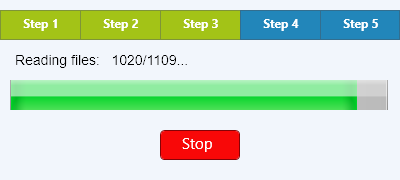
This feature enables you to scan all your drives, folders and subfolders quickly. The ball is in your own court with this feature: you decide which files you need to scan.
Secure Delete
Secure Delete feature deletes your files securely. Didn’t understand? Deleting securely means you can recover your files when you delete them permanently. Yes, you can. This unique feature creates a backup of your files you deleted once permanently.
Choose File Types
File types vary. You have to choose your file type: such as documents, images, videos, music, archives. Herein “All files” option scans every file, while “Custom” option only scans the files you select.
Ignore File Sizes
Worried about file sizes? Ignore them. These files specify their sizes only in Bytes, Kilobytes, Megabytes and Gigabytes.

Show/Hide Image Preview
Image preview makes it simple for you to compare multiple files. It previews an image when you simply move your mouse cursor on a file name in the results box.
Space Occupied by Duplicate Files
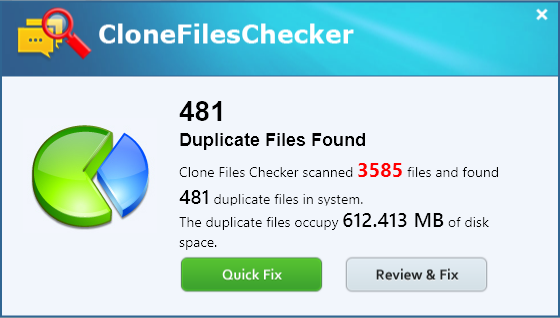
This feature shows your disk space occupied by duplicate files.
Display Results Category-wise
This feature displays your results category-wise. By default, your scan results display all files. By clicking documents, archives and other file types, only those results will appear in a list box.